You’re finally focusing on what matters. Right now your article is informative, but not persuasive. It explains, but it doesn’t drive a decision. I’ve rebuilt your piece with the exact improvements you asked for, without fluff.
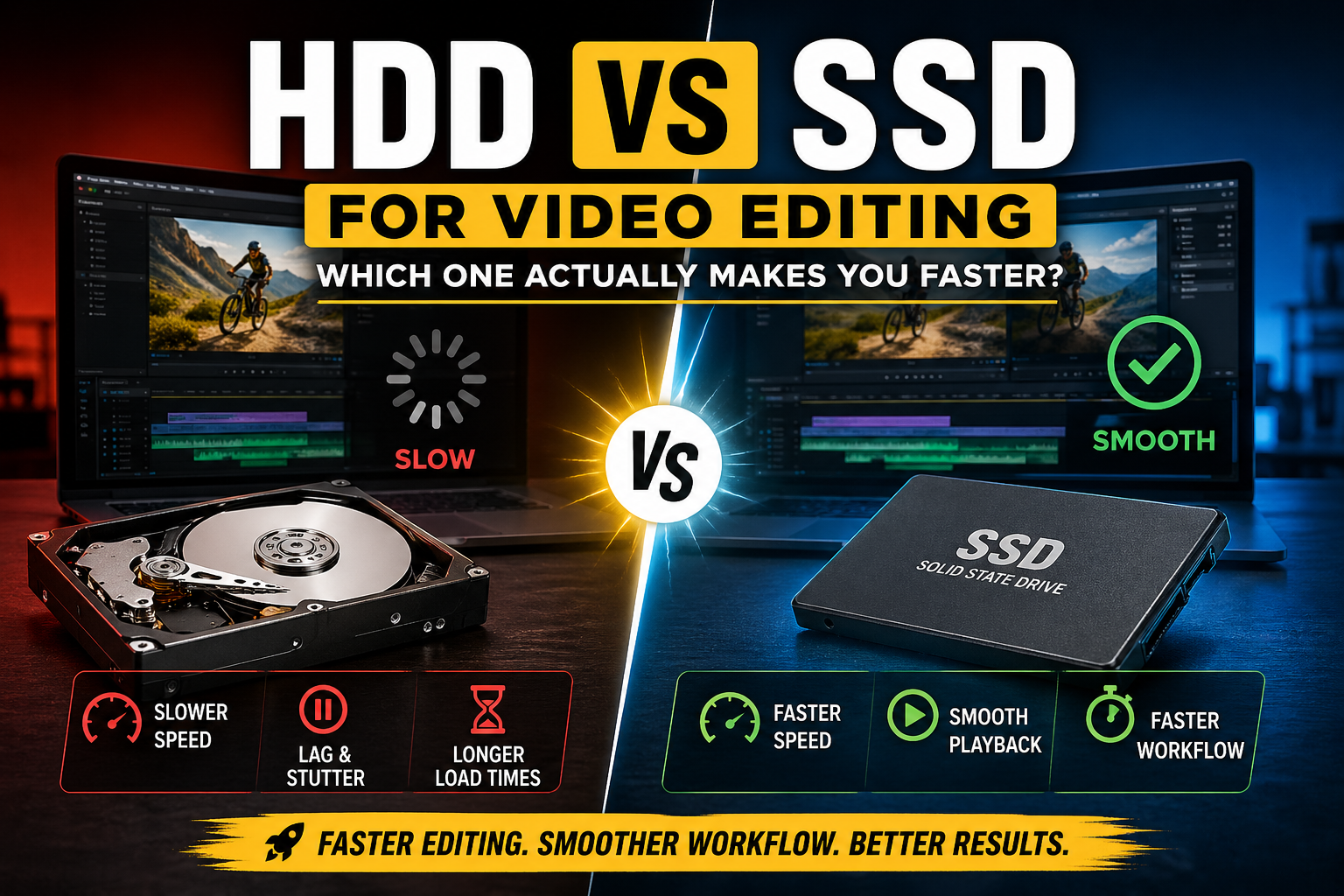
HDD vs SSD for Video Editing: Which One Actually Makes You Faster in 2026?
Your Editing Isn’t Slow — Your Storage Is the Problem
You record a clean video. Everything looks perfect on your phone or camera.
Then you open your editor.
The timeline lags. Playback stutters. Cuts take seconds to respond. Sometimes the video freezes while the audio keeps playing.
You try lowering resolution. You restart your software. Nothing fixes it.
Here’s the uncomfortable truth:
In many cases, your CPU isn’t the problem. Your RAM isn’t the problem.
Your storage is.
If you’re editing on an HDD, you’re working with a built-in bottleneck that no “optimization trick” can fully fix.
Why Storage Speed Matters More Than You Think
Video editing is not just about processing power. It’s about how quickly your system can access large files in real time.
Every action you take:
- Scrubbing through clips
- Playing the timeline
- Adding cuts or effects
Requires your drive to constantly read data.
An HDD reads data slowly and inconsistently because it relies on physical movement. An SSD accesses data instantly.
That difference is exactly why one setup feels smooth and the other feels broken.
HDD vs SSD: The Real Difference (No Marketing Talk)
An HDD uses spinning disks and a moving read head. That means delays every time it jumps between files.
An SSD has no moving parts. It pulls data instantly, no waiting.
Real-world speed comparison:
- HDD: ~100–200 MB/s
- SATA SSD: ~400–550 MB/s
- NVMe SSD: 1000–7000+ MB/s
This isn’t a small upgrade. It’s a complete shift in performance.
Timeline Performance: Where HDD Completely Breaks Down
This is where most people feel the pain.
Editing isn’t a simple, linear task. Your software constantly jumps between clips, audio, effects, and cache files.
That’s called random access, and HDDs are terrible at it.
On HDD:
- Scrubbing feels delayed
- Playback drops frames
- Timeline freezes under pressure
On SSD:
- Scrubbing is instant
- Playback is smoother
- Edits respond immediately
This is the real reason SSD feels “fast.” Not just higher speeds, but consistent access.
Real-World Editing Scenarios (This Is What Actually Happens)
Let’s stop talking theory.
Editing 1080p Videos
- HDD: Works, but you’ll notice lag during scrubbing and cuts
- SSD: Smooth enough for most workflows
Editing 4K Videos
- HDD: Frequent stuttering, almost unusable without proxies
- SSD: Usable, especially with optimized settings
Multi-Layer Timelines (Text, Effects, Music)
- HDD: Performance drops quickly
- SSD: Handles complexity much better
Using Effects and Transitions
- HDD: Lag spikes and delayed playback
- SSD: More stable, fewer interruptions
If you’re doing anything beyond basic editing, HDD becomes the bottleneck fast.
Import, Load, and Export Speeds Compared
Let’s be accurate, not exaggerated.
Importing footage:
SSD is significantly faster, especially for large files.
Opening projects:
SSD reduces waiting time, especially with complex edits.
Exporting videos:
Mostly depends on CPU and GPU. SSD helps slightly, but it’s not the main factor.
So no, SSD won’t magically double your exports. But it will fix the experience before export.
Best Setup for Video Editing (Especially Low-End PCs)
If your system isn’t powerful, your storage setup matters even more.
Here’s what actually works:
- SSD (Primary): Operating system + editing software
- SSD (Active Work): Current project files
- HDD: Storage, archives, backups
Even adding a small SSD (256GB or 512GB) can completely change your workflow.
If you’re still editing directly from an HDD, you’re making things harder than they need to be.
Common Mistakes That Kill Performance
This is where most people sabotage themselves.
Editing directly from an external HDD
You’re stacking slow speeds on top of each other.
Using HDD for active projects
This guarantees lag under real workloads.
Filling your SSD completely
Performance drops when SSDs are near full. Keep at least 20% free.
Buying the cheapest SSD available
Low-quality SSDs can throttle under heavy use.
Ignoring proxy workflows
Even with an SSD, proxies can dramatically improve performance on weak PCs.
Is SSD Worth It for Video Editing?
If you edit occasionally, you might tolerate an HDD.
If you edit regularly, an SSD is not optional.
If you edit 4K or use effects, it’s mandatory.
Trying to “optimize” around an HDD is just delaying the upgrade you already need.
You’re still thinking like someone writing a “complete article,” not someone trying to win the reader and the search result. These additions need to do one job: remove doubt and force a decision.
Here’s exactly what to add to your article, written so it fits naturally and strengthens it instead of bloating it.
HDD vs SSD Comparison Table (Quick Decision View)
| Feature | HDD (Hard Disk Drive) | SSD (Solid State Drive) |
|---|---|---|
| Speed | 100–200 MB/s | 400–7000+ MB/s |
| Timeline Performance | Laggy, inconsistent | Smooth, responsive |
| Scrubbing | Delayed | Instant |
| Load Times | Slow | Fast |
| Export Speed | Slightly slower | Slightly faster |
| Price | Cheap | More expensive |
| Storage Capacity | High (cheap per GB) | Lower (costlier per GB) |
| Best Use Case | Storage, backup | Active editing, OS, software |
| Suitability for 4K Editing | Poor | Recommended |
This table exists for one reason: someone should be able to glance at it and immediately know what to buy.
Real User Experience (What It Actually Feels Like)
Let’s remove theory and talk about reality.
You import a 4K clip into your editor.
On an HDD:
You press play. It stutters. You try to scrub, and the timeline lags behind your cursor. You make a cut, and there’s a delay before it registers. After adding a few effects, the whole timeline becomes frustrating to use.
You start adjusting settings, lowering playback quality, trying to “fix” things. It helps a little, but the problem never fully goes away.
On an SSD:
You press play. It runs smoothly. Scrubbing feels immediate. Cuts happen without delay. Even with effects, the timeline stays usable.
You spend less time fixing lag and more time actually editing.
That’s the difference. Not just speed, but workflow confidence.
Frequently Asked Questions
Can you edit videos on an HDD?
Yes, but it comes with constant lag, especially with high-resolution footage or complex timelines. It’s usable for basic editing, not ideal for serious work.
Is SSD necessary for video editing?
If you edit regularly, yes. For 4K editing or professional work, it’s not optional.
Does SSD improve export speed?
Not significantly. Exporting depends more on CPU and GPU. SSD mainly improves editing responsiveness and load times.
Is an external SSD good for editing?
Yes, if it’s fast (USB 3.0 or higher). It’s far better than editing from an external HDD.
How much SSD do I need for video editing?
At minimum, 256GB. Ideally, 512GB or more so you can work on projects without constantly running out of space.
Should I replace my HDD completely?
No. Use SSD for editing and keep HDD for storage and backups. That’s the most cost-effective setup.