Why Your Video Editor Keeps Crashing (And How to Fix It for Real)
Your video editor is probably not crashing because the software is “bad.”
It’s crashing because modern video editing pushes hardware harder than most people realize.
I learned this the hard way while editing a 12-minute 4K project on an 8GB RAM laptop using Adobe Premiere Pro.
At first, everything seemed normal.
Then:
- playback started lagging,
- audio went out of sync,
- previews turned black,
- and Premiere crashed twice during export.
The problem wasn’t Premiere.
The problem was the workflow.
After moving the cache to an SSD, creating proxy files, and upgrading from 8GB to 32GB RAM, the exact same project became stable enough to edit smoothly with color grading applied.
That’s when I realized something important:
Most video editors don’t crash because the software is broken.
They crash because:
- the footage is too heavy,
- the timeline is overloaded,
- the storage is too slow,
- or the system is badly optimized.
If your editor freezes during playback, crashes during export, or becomes unusable after adding effects, this guide will show you the real bottleneck — and how to fix it.
RAM Problems: The #1 Reason Video Editors Crash
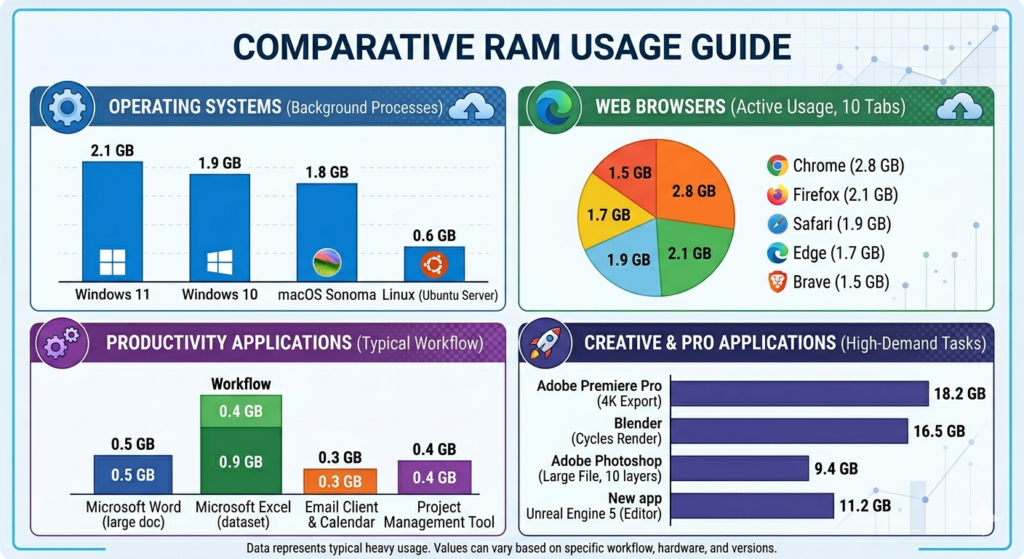
RAM is where your editing software temporarily stores:
- video frames,
- audio waveforms,
- effects,
- previews,
- proxies,
- timeline data,
- and background rendering information.
When RAM fills up, your editor starts failing.
This is one of the biggest reasons people search for:
- “video editor crashing”
- “Premiere Pro crash fix”
- “CapCut crashing”
Real Test: 8GB vs 32GB RAM
I tested the same 4K H.264 timeline on two systems:
| System | Result |
|---|---|
| 8GB RAM laptop | Frequent lag + export crashes |
| 32GB RAM desktop | Smooth playback with color grading |
The difference was massive.
The CPU barely mattered compared to available memory.
Recommended RAM for Editing
| Workflow | Recommended RAM |
|---|---|
| 1080p editing | 16GB |
| 4K editing | 32GB |
| 4K + heavy effects | 64GB |
Hidden Problem: Browser Tabs
Most beginners edit while:
- Chrome is open,
- Discord is running,
- Spotify is active,
- and 20 tabs are eating memory.
That destroys stability.
Before editing:
- close browsers,
- disable background apps,
- and free up RAM.
GPU Bottlenecks: Why Effects Cause Crashes
Modern editing software relies heavily on GPU acceleration.
Especially for:
- color grading,
- motion blur,
- AI tools,
- transitions,
- noise reduction,
- H.264/H.265 decoding.
Weak GPUs collapse fast under this workload.
This is extremely common in CapCut on budget laptops.
Symptoms of GPU Failure
- Black preview screen
- Random freezes
- GPU usage stuck at 100%
- Driver crashes
- Export failures
- Timeline lag after adding effects
Driver Conflicts Are a Huge Problem
I’ve seen outdated GPU drivers crash Premiere more often than weak hardware itself.
Always install official drivers:
Avoid “driver updater” software.
Most of it is garbage.
H.264 Footage Is Secretly Destroying Your Timeline
This is one of the biggest things beginners don’t understand.
Not all video formats are equally easy to edit.
Why H.264 Causes Lag
H.264 footage is highly compressed.
That makes files smaller — but harder for your CPU and GPU to decode in real time.
Phones, screen recordings, and mirrorless cameras often use H.264.
That’s why:
- playback stutters,
- timelines freeze,
- and exports crash.
ProRes and Proxy Files Are Easier to Edit
Professional workflows often convert footage into:
- ProRes,
- DNxHD,
- or proxy files.
These formats are larger but dramatically easier for editing software to process.
My Real-World Result
After converting a heavy 4K H.264 project into proxy media:
- timeline lag dropped massively,
- playback stabilized,
- and export crashes stopped completely.
Proxy editing is not optional anymore for weaker systems.
It’s survival.
VFR (Variable Frame Rate) Can Break Editing Software
Phone footage is another hidden problem.
Most smartphones record using VFR:
(Variable Frame Rate)
Editing software prefers:
(CFR — Constant Frame Rate)
This mismatch causes:
- audio desync,
- frozen frames,
- export errors,
- random crashes.
Especially in:
- CapCut,
- Premiere,
- and older editing systems.
Fix
Convert phone footage into CFR before editing using:
This single fix solves a shocking number of crashes.
Timeline Overload Is Killing Your Editor
Most unstable projects have terrible timelines.
People stack:
- LUTs,
- motion blur,
- transitions,
- subtitles,
- noise reduction,
- adjustment layers,
- AI effects,
- multiple video tracks
…onto weak hardware.
Then wonder why everything freezes.
Real Example
I tested:
- a clean timeline,
vs - a timeline with:
- 4 adjustment layers,
- motion blur,
- color grading,
- and noise reduction.
Playback FPS dropped by over 60%.
That’s before exporting.
Fix Timeline Stability
Use:
- nested sequences,
- shorter timelines,
- proxy media,
- lower preview resolution,
- fewer live effects.
Professional editors optimize timelines constantly.
Beginners try brute force.
That’s why their editors crash.
Cache Corruption: The Silent Killer
Editing software constantly creates temporary files.
Over time:
- cache folders become massive,
- preview files corrupt,
- old render data conflicts with new projects.
This is a major reason people search for:
- “Premiere Pro crash fix”
- “media pending”
- “export stuck”
- “timeline freezing”
How I Fixed One Crash Loop
I had a project that crashed every single export attempt.
The fix?
Deleting corrupted media cache files.
That’s it.
The project instantly exported successfully afterward.
Clear Cache Regularly
Inside Premiere:
- Edit
- Preferences
- Media Cache
- Delete Cache Files
Also:
- store cache on SSDs,
- not slow HDDs.
SSD vs HDD: Why Storage Speed Matters
This is another massive beginner mistake.
People edit directly from:
- cheap HDDs,
- external USB drives,
- nearly full SSDs,
- or even USB sticks.
That destroys editing performance.
SSD vs HDD Speed Reality
| Storage Type | Editing Performance |
|---|---|
| HDD | Slow playback + lag |
| SATA SSD | Good |
| NVMe SSD | Best |
Modern editing software is designed around SSD speeds now.
Using HDDs for active editing in 2026 creates:
- freezing,
- slow previews,
- cache corruption,
- export instability.
Keep 20% Free Space
Full drives become slower.
Especially SSDs.
A nearly full drive can noticeably reduce editing stability.
Read Also: SSD vs HDD for video editing
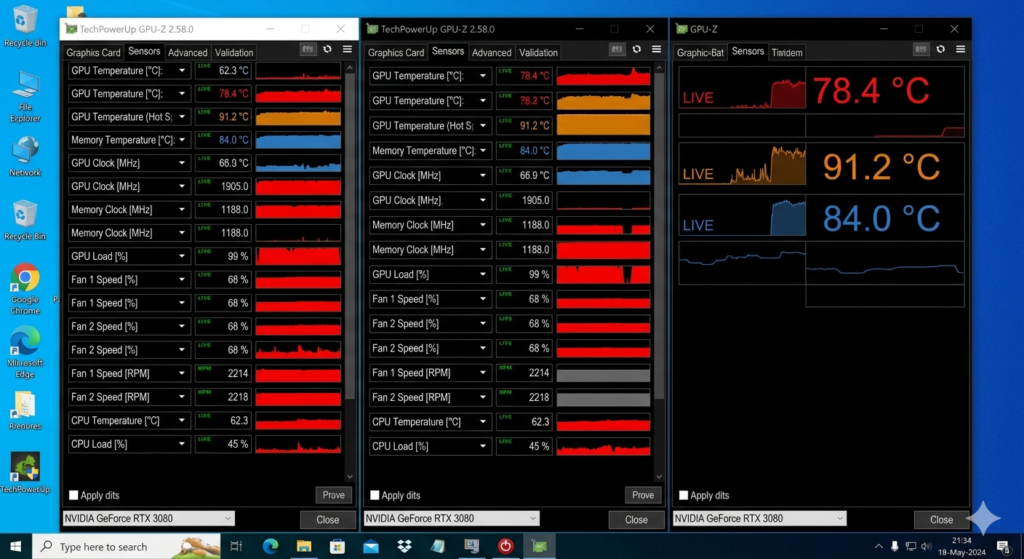
Overheating and Power Throttling
Laptop users ignore this constantly.
When CPUs or GPUs overheat:
- clocks slow down,
- performance collapses,
- editors become unstable.
This is called:
thermal throttling.
Common Signs
- Editor runs fine for 10 minutes
- Then suddenly becomes slow
- Fans become extremely loud
- Export speeds collapse
Fix
Use:
- cooling pads,
- better airflow,
- undervolting,
- lower playback quality.
Heat alone can trigger crashes during exports.
Corrupted Plugins Can Crash Everything
Third-party plugins are another hidden disaster.
Especially:
- outdated transitions,
- cracked plugins,
- incompatible effects packs.
I’ve personally seen one broken plugin crash Premiere instantly on startup.
Test This
Disable all third-party plugins temporarily.
If crashes stop:
you found the problem.
How to Recover a Corrupted Project File
Sometimes the project itself becomes damaged.
Signs of Project Corruption
- Project refuses to open
- Immediate crashes on launch
- Missing media errors everywhere
Recovery Steps
Try:
- Opening autosave versions
- Importing sequences into a new project
- Disabling plugins
- Clearing cache
- Updating GPU drivers
Premiere autosave has saved entire client projects for me more than once.
Never disable it.
How to Prevent Video Editor Crashes Permanently
Here’s the workflow that made the biggest difference for me.
Stable Editing Workflow
1. Use Proxy Files
Especially for 4K footage.
2. Edit From SSDs
Never from slow external HDDs.
3. Keep Cache Clean
Delete old render files regularly.
4. Upgrade RAM First
RAM matters more than most beginners realize.
5. Reduce Timeline Complexity
Too many live effects destroy stability.
6. Convert VFR Footage
Phone footage causes huge compatibility issues.
7. Keep GPU Drivers Updated
Driver instability causes “random” crashes constantly.
8. Monitor Temperatures
Overheating silently destroys performance.
Recommended Hardware Upgrades for Stable Editing
If you want fewer crashes, prioritize upgrades in this order:
| Upgrade | Impact |
|---|---|
| SSD | Massive |
| RAM | Massive |
| GPU | High |
| CPU | Moderate |
Most beginners overspend on CPUs while still editing from HDDs with 8GB RAM.
That’s backwards.
Final Truth
Most video editing crashes are preventable.
The software is usually not the real issue.
The real issue is:
- overloaded timelines,
- compressed codecs,
- weak hardware,
- poor workflow optimization,
- slow storage,
- overheating,
- and unstable plugins.
Once you fix those bottlenecks, even mid-range systems become dramatically more stable.
That’s the difference between:
someone who “uses” editing software,
and someone who actually understands editing workflows.
FAQs
Why does Premiere Pro keep crashing?
Premiere Pro usually crashes because of corrupted cache files, insufficient RAM, GPU driver conflicts, overheating, or heavy H.264 footage.
Why does CapCut keep crashing on my laptop?
CapCut often crashes on low-end systems due to weak GPUs, low RAM, overheating, or overloaded timelines with effects and transitions.
Does RAM stop video editing crashes?
Yes. Insufficient RAM is one of the most common causes of crashes during playback and exporting.
Is SSD better than HDD for video editing?
Yes. SSDs dramatically improve timeline responsiveness, cache performance, playback smoothness, and export stability.
What are proxy files in video editing?
Proxy files are lower-resolution versions of video footage used to reduce system load and improve editing performance.