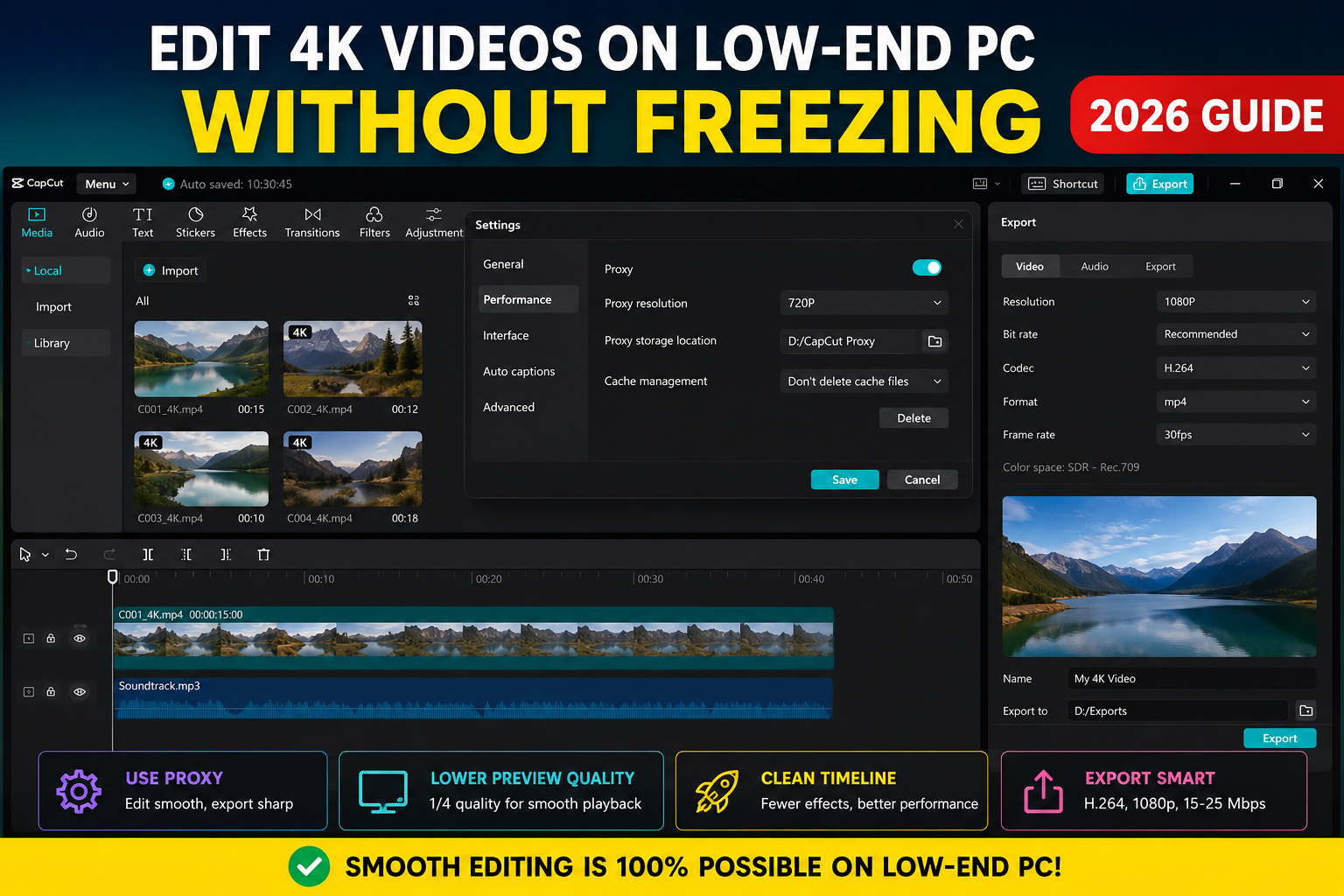
How to Edit 4K Videos on Low-End PC Without Freezing (2026 Guide)
Editing 4K videos on a weak computer feels impossible when your timeline keeps freezing, previews lag every few seconds, and exports take forever.
Most beginner creators think they need an expensive gaming PC to edit smooth 4K footage. That is not completely true.
The real problem is usually a bad editing workflow.
Even mid-range computers can handle 4K editing if you use the right settings, lightweight codecs, proxy files, and timeline optimization techniques.
In this guide, you’ll learn exactly how to edit 4K videos on a low-end PC without constant lag, crashes, or playback stuttering.
Why 4K Video Editing Destroys Weak PCs
4K footage contains four times more pixels than 1080p video.
That means your computer has to process:
- More video data
- Higher bitrate files
- Heavier codecs
- Larger cache files
- More GPU rendering load
If your PC has:
- 4GB or 8GB RAM
- Integrated graphics
- Old HDD storage
- Weak CPU
then editing original 4K files directly will usually cause:
- Timeline freezing
- Audio desync
- Preview lag
- Random crashes
- Slow exports
The biggest mistake beginners make is trying to edit full-quality camera files directly on weak hardware.
Professional editors rarely do that.
They use optimized workflows.
Minimum PC Specs for Smooth 4K Editing
You do NOT need a $3000 editing setup.
But you do need realistic expectations.
| Component | Minimum for Basic 4K Editing | Recommended |
|---|---|---|
| RAM | 8GB | 16GB |
| Storage | SSD | NVMe SSD |
| CPU | Intel i5 8th Gen / Ryzen 5 | Ryzen 7 |
| GPU | Integrated GPU | Dedicated GPU |
| Editing Software | CapCut / VN | DaVinci Resolve |
If you still use an HDD for editing, storage is probably one of your biggest bottlenecks.
SSDs dramatically improve:
- timeline responsiveness
- proxy loading
- cache performance
- export speed
What Actually Causes Timeline Lag
Most creators blame their PC.
But timeline lag usually comes from multiple workflow problems combined together.
1. Heavy Video Codecs
H.265 footage looks great, but it is extremely compressed.
That means your CPU has to constantly decode complex video data while editing.
Low-end processors struggle badly with this.
H.264 is usually much easier to edit.
2. High Preview Resolution
Many beginners edit in full-resolution preview mode.
That forces your PC to render every frame at maximum quality during playback.
Lowering preview quality instantly reduces lag.
3. Too Many Effects
Transitions, motion blur, AI effects, and color grading can overload weak GPUs.
Especially in CapCut and DaVinci Resolve.
4. Slow Storage Drives
Editing directly from old HDDs creates constant read/write bottlenecks.
This becomes even worse with 4K footage.
The Best Way to Edit 4K on Low-End PCs: Proxy Editing
Proxy editing is the single biggest performance improvement for weak computers.
Professional editors use it every day.
Instead of editing massive original files, your software creates lightweight temporary copies called proxies.
These proxy files are:
- lower resolution
- easier to decode
- much smaller
- faster to playback
When exporting, the software automatically switches back to the original 4K footage.
That means:
- smooth editing
- less freezing
- faster workflow
- same final quality
How to Enable Proxy Editing in CapCut
CapCut has built-in proxy tools that many beginners ignore.
Step 1 — Import Your 4K Clips
Add your footage normally into the project.
Step 2 — Enable Proxy Files
Inside project settings:
- Turn ON proxy editing
- Choose low-resolution proxies
- Store proxies on SSD if possible
Step 3 — Restart Timeline Playback
After proxies generate, playback becomes much smoother.
Especially on:
- 4GB RAM laptops
- office PCs
- integrated graphics systems
Best Proxy Resolution for Weak Computers
Many creators choose proxies that are still too heavy.
Use this instead:
| Original Footage | Best Proxy Resolution |
|---|---|
| 4K | 720p |
| 2.7K | 540p |
| 1080p | 480p |
The goal is editing speed.
Not preview quality.
Lower Your Preview Resolution Immediately
This is one of the fastest lag fixes.
Inside your editor:
- switch preview quality to 1/2 or 1/4
- disable full-quality playback
- turn off unnecessary scopes
Most beginners cannot even visually notice the difference while editing.
But the performance improvement is huge.
Use Optimized Video Codecs
If your footage comes from:
- iPhones
- drones
- mirrorless cameras
- screen recorders
then it may use H.265 by default.
That codec destroys low-end editing performance.
If possible:
- record using H.264
- transcode footage before editing
- avoid highly compressed formats
H.264 files are larger, but much easier for weak CPUs to handle.
Best Editing Software for Low-End PCs
Some editing programs are simply too heavy for weak systems.
Best Lightweight Options
1. CapCut Desktop
Best for:
- beginners
- YouTube Shorts
- TikTok editing
- weak laptops
Pros:
- fast learning curve
- built-in proxies
- lightweight interface
- automatic captions
Cons:
- limited advanced tools
- can lag with heavy effects
2. VN Editor
Best for:
- mobile creators
- basic edits
- weak hardware
Pros:
- extremely lightweight
- simple interface
- smooth playback
Cons:
- fewer professional tools
3. DaVinci Resolve
Best for:
- advanced color grading
- cinematic editing
But weak PCs may struggle badly.
Especially with:
- Fusion effects
- noise reduction
- 4K timelines
Disable These Features If Your PC Lags
Many effects look cool but destroy performance.
Disable or reduce:
- motion blur
- real-time stabilization
- AI effects
- high-quality playback
- noise reduction
- excessive transitions
- animated titles
Add heavy effects near the END of editing.
Not during rough cuts.
Move Your Cache Files to an SSD
Cache files grow extremely large during editing.
If your cache is stored on an HDD:
- playback becomes slower
- scrubbing freezes
- previews stutter constantly
Move cache folders to SSD storage.
Even a cheap SATA SSD can massively improve responsiveness.
Best Workflow for Editing 4K on Weak PCs
Here’s a realistic workflow that actually works.
Step 1 — Copy Footage to SSD
Never edit directly from:
- memory cards
- USB drives
- slow HDDs
Step 2 — Create Proxy Files
Generate 720p proxies immediately.
Step 3 — Edit Using Low Preview Quality
Keep playback smooth.
Step 4 — Avoid Heavy Effects Early
Focus on cuts first.
Step 5 — Export Overnight
Weak PCs often need extra export time.
That is normal.
Realistic Expectations for Low-End PCs
A weak PC can edit 4K.
But it cannot behave like a professional workstation.
Your goal should be:
- stable playback
- fewer crashes
- smoother workflow
- acceptable export times
Not instant rendering.
Most successful beginner creators started on weak hardware.
The difference was workflow optimization.
Not expensive equipment.
Common Mistakes That Make Editing Slower
Editing Directly From HDD
One of the biggest beginner mistakes.
Keeping Too Many Browser Tabs Open
Chrome can consume massive RAM while editing.
Using Maximum Timeline Resolution
Most creators do not need full-quality playback while cutting clips.
Installing Too Many Plugins
Heavy plugins often create instability and crashes.
Ignoring Proxy Editing
This alone can completely change editing performance.
Final Thoughts
You do not need an expensive editing setup to create good videos.
Most low-end PC editing problems come from inefficient workflows, heavy codecs, poor storage choices, and lack of proxy editing.
If you:
- use SSD storage
- enable proxies
- lower preview quality
- avoid heavy effects
- optimize your workflow
then even weak computers can edit 4K footage surprisingly well.
The biggest advantage is consistency.
A smooth workflow matters more than raw hardware power.
FAQ
Can 4GB RAM edit 4K videos?
Yes, but only with proxy editing and lightweight software like CapCut or VN Editor.
Is 8GB RAM enough for 4K editing?
Yes for beginner editing workflows, especially if you use proxies and SSD storage.
Why does H.265 lag so much?
H.265 is heavily compressed, which increases CPU decoding load during editing.
Does SSD improve editing performance?
Yes. SSDs improve cache speed, playback responsiveness, export performance, and timeline smoothness.
What is the best free editor for low-end PCs?
CapCut Desktop and VN Editor are among the best beginner-friendly lightweight editors.