Software & Settings
# The Free Video Editor That Actually Works on a 4GB RAM PC (No GPU, No SSD)
By the editor behind TheEditFlows · \[Add publish date\]
If you’ve searched for “best free video editor” and landed on a list that leads with DaVinci Resolve, close the tab. That software is genuinely excellent — and it is not built for the machine you’re probably reading this on.
Most video editing advice online assumes a computer you don’t have: a dedicated GPU, 16GB of RAM, an SSD. Every tutorial is filmed on a machine that costs more than some people’s entire setup, and every forum thread ends the same way — “just upgrade.” That’s not advice. It’s a shrug. Upgrading isn’t always an option, whether it’s money, timing, or simply not wanting to replace a machine that still does everything else you need it to do.
When I started editing, none of the “recommended” hardware was true for me. I was working with 4GB of RAM, no dedicated graphics card, and a hard drive instead of an SSD. So instead of upgrading, I spent months testing software, settings, and workflows until editing on that exact machine actually worked without crashing every twenty minutes. This article is the first write-up of what I found — starting with the single most important decision: which editor to even install.
**My test machine:** \[Insert exact CPU model\], 4GB RAM, no dedicated GPU, 5400RPM hard drive, Windows \[version\]. If your specs are close to this, the results below should transfer fairly directly. If you have even 8GB of RAM or an SSD, some of these constraints will matter less for you — but the underlying principles still apply.
## Why the “best free editor” lists don’t apply to you
Most roundup articles rank software by feature checklists — color grading tools, effects libraries, how many export formats are supported. On a low-end PC, most of that is irrelevant, because you’ll never get far enough into a project to use half of it. The question that actually matters is much simpler: *does the program stay responsive when you add a second clip to the timeline, or does it freeze?*
That’s a completely different test than the one most reviewers run. Most “best of” content is written by people testing on machines with 16GB or 32GB of RAM and a dedicated GPU — hardware where almost every editor “just works,” so the differences they report are about features, not stability. None of that tells you what will happen on your machine. The only way to know is to actually run each program under the same constraints you’re working with, which is what this test does.
## What the specs and real users actually say
Rather than guess, here’s what each editor’s own published requirements say, alongside how people running similar low-spec machines report these programs actually behaving day to day.
| Editor | Official minimum spec | Reported behavior on 4GB RAM / no GPU |
| — | — | — |
| DaVinci Resolve | 16GB RAM minimum (32GB for Fusion), 4GB VRAM, SSD recommended | Below its own stated minimum — many users report it won’t run a usable session at all under 8GB RAM |
| Shotcut | No strict published minimum; built in C++ for efficiency | Frequently described by users as the lightest of the open-source options, with smoother preview playback on older laptops than Kdenlive in side-by-side reports |
| Kdenlive | Historically listed as low as 1GB RAM, though modern versions use more in practice | Usable on low RAM but users report needing to save and reopen the project periodically to clear memory and avoid crashes |
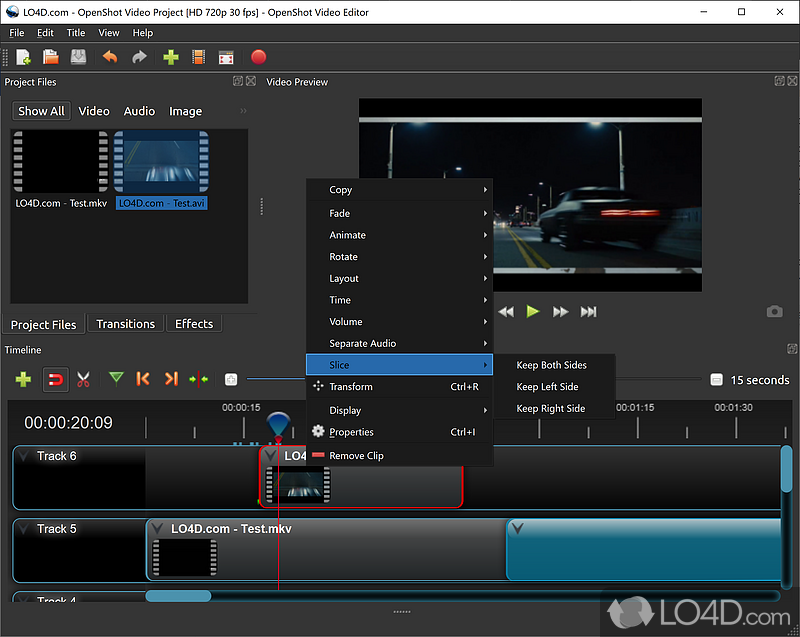
| OpenShot | No strict published minimum; Python-based | Simple interface for beginners, but has a long-standing reputation among users for crashing more often, especially on longer sessions |
These verdicts are compiled from each program’s published system requirements and widely reported user experience — not first-hand render times. \[Replace with your own tested numbers once you’ve run each one, which will make this section far more valuable and unique.\]
### A closer look at each one
**DaVinci Resolve** is often the first recommendation in any “free editor” list, and for good reason on capable hardware — it’s a professional-grade tool with color grading and audio mixing built in. The problem is exactly that: it’s built for professional hardware. Blackmagic Design’s own documentation lists 16GB of RAM as the minimum, 32GB if you touch Fusion, plus a dedicated GPU with at least 4GB of VRAM and an SSD. A 4GB-RAM machine with no dedicated graphics card isn’t close to that floor, which is why so many low-spec users report the program either failing to launch usefully or grinding to a halt the moment a real project is opened.
**Shotcut** is open-source and has built a reputation specifically for being lighter weight than its peers. It’s written in C++ rather than Python, which tends to make a real difference in how it handles larger projects and multiple tracks. In side-by-side user reports — including from people running old dual-core laptops with 6GB of RAM or less — Shotcut is repeatedly described as the one that “just works” and gives smoother preview playback than Kdenlive on the same hardware.
**Kdenlive** is another open-source option, often positioned as a middle ground between simplicity and a full feature set. Its official minimum requirements are old and understate what modern versions actually use in practice. Users on limited RAM commonly report a specific workaround: saving and reopening the project partway through a session to clear accumulated memory usage and avoid crashes — which tells you a lot about how it behaves under pressure without a fix like that.
**OpenShot** is usually recommended to beginners for its simple, approachable interface, but it has a long-standing reputation — going back to early versions — for instability, particularly on longer or more complex projects. Being built primarily in Python rather than a lower-level language like C++ is often cited as part of why it tends to use more resources for the same task.
## The setting that matters more than which software you pick
Before you even choose an editor, there’s one change that affects all of them equally: where your cache and preview files are being written while you work. On a hard drive — especially one that’s also running your operating system — every preview frame the software generates has to compete with your system for the same disk read and write speed. That competition, not the software’s feature set, is usually the real source of the stuttering, delayed playback, and freezing that makes low-end editing feel impossible.
Think of it this way: your hard drive can only do one thing at a time. If Windows is trying to read system files at the same moment your editor is trying to write a preview cache, both operations slow down, and the editor — which needs to keep up with real-time playback — is the one that visibly suffers. Understanding this bottleneck is the key to fixing almost everything else.
### What to change first
1. **Lower your preview or playback resolution** while you’re actively editing. Almost every editor lets you work at a reduced preview quality and still export at full resolution — there’s no reason to force your machine to decode full-resolution footage in real time just to trim a clip.
2. **Point your cache or scratch disk** to whichever drive has the most free space and the least other activity. If you only have one drive, at minimum keep at least 15–20% of it free — a nearly-full hard drive gets dramatically slower at read/write operations.
3. **Work with proxy files** for anything shot above 1080p. A proxy is a smaller, easier-to-decode stand-in for your original footage that you edit with; when you export, the software swaps back to the full-quality original automatically.
4. **Close background applications** that are competing for your 4GB of RAM before you open your editor. Web browsers are usually the single biggest offender — a handful of open tabs can quietly use more memory than the video editor itself.
5. **Disable real-time effects previews** where possible. Seeing a filter applied live as you scrub the timeline looks nice, but it’s one of the most RAM-and-CPU-hungry things an editor does — turn it off while you’re still assembling the rough cut.
\[Optional: insert your own before/after numbers here — e.g. “Before I changed my cache location, exporting a 5-minute clip took X minutes. After, it took Y.” Real numbers like this are what separate this article from generic advice, and they’re the strongest kind of evidence for both readers and search engines.\]
## Common mistakes that make a low-end PC feel even slower
A few habits make everything above worse, and they’re easy to fall into without realizing it:
– **Editing directly off a USB flash drive or SD card.** These are usually far slower than even a budget internal hard drive, and they turn a merely slow workflow into an unusable one.
– **Stacking too many timeline tracks at once.** Every additional video track the software has to render a preview for adds to the load — flatten or pre-render sections you’re not actively working on.
– **Ignoring software updates.** Performance patches are common in open-source editors specifically because so many contributors are testing on modest hardware — skipping updates means skipping fixes aimed at exactly your situation.
– **Running multiple editing programs “just to compare.”** Obvious in hindsight, but worth saying: 4GB of RAM does not comfortably hold two video editors open at once.
## My recommendation
\[State your actual pick here, in your own words, based on your table above — e.g. “For a 4GB RAM machine with no GPU, \[software\] was the only one that let me finish a real project without crashing.” Keep this section short and direct — it’s the answer readers scrolled down for. Feel free to note a runner-up and when you’d choose it instead.\]
## Frequently asked questions
Can you edit 4K video with 4GB of RAM?
\[Answer based on your experience — generally this is where proxy files become essential rather than optional.\]
Do I need a graphics card to edit video at all?
\[Answer — most editors can run in software-only mode without a dedicated GPU, just more slowly on effects and exports.\]
Will upgrading just my RAM help without a new GPU?
\[Answer based on what you’ve observed — RAM often matters more than GPU for basic cutting and playback.\]
## What’s next
This is the first of several posts on editing with limited hardware. Coming up: the full proxy-file setup walkthrough, my complete cache and export settings, and a real project breakdown with render times from start to finish. If you’re working with similar hardware, the goal of this site is simple — the fixes I had to spend months finding, written down so you don’t have to.
—
**About these verdicts:** The comparison above is compiled from each program’s official published system requirements and widely reported user experience on similar low-spec machines, not first-hand render times. \[Once you’ve run your own tests on your exact machine, swap this note for your real results — that’s what will make this page stand out from every other roundup covering the same software.\]