
CapCut vs Filmora for Low-End PC (2026 Comparison-which is best?)
CapCut vs Filmora for Low-End PC (2026 Comparison – Which One Is Better?)
Choosing between CapCut and Filmora on a low-end PC can be confusing. Both are popular, beginner-friendly video editors — but they perform very differently on systems with 2GB or 4GB RAM.
In this guide, you’ll get a real comparison, including performance tests, pros and cons, and which one is better for your specific PC.
⚡ Featured Snippet – CapCut vs Filmora (Low-End PC)
CapCut vs Filmora for low-end PC: CapCut is better for beginners and runs smoother on 4GB RAM PCs, while Filmora offers more advanced features but requires optimization and may lag on weaker systems. For very low-end PCs, CapCut is the safer choice.
🧠 CapCut vs Filmora – Quick Overview
| Feature | CapCut | Filmora |
|---|---|---|
| Best For | Beginners, social media | YouTube, professional edits |
| Minimum RAM | 4GB | 4GB (8GB recommended) |
| Ease of Use | ⭐⭐⭐⭐⭐ | ⭐⭐⭐⭐⭐ |
| Performance on Low-End PC | Smooth | Moderate |
| Effects | Limited but fast | Advanced but heavy |
| Price | Free | Paid (free version has watermark) |
🧠 What Is a Low-End PC for This Comparison?
For this comparison, a low-end PC means:
- 2GB–4GB RAM
- Integrated graphics (no GPU)
- Basic CPU (Intel i3, Celeron, Ryzen 3)
🎯 Real Expectations
- CapCut works best at 720p editing
- Filmora can handle 1080p, but may lag
- Heavy effects will slow both tools
🔍 Real Performance Comparison (Tested on Low-End PCs)
- Device A: Intel i3 (7th Gen), 4GB DDR4 RAM, Integrated Intel HD 620 Graphics (Windows 10).
- Device B: Intel i5 (4th Gen), 8GB DDR3 RAM, 256GB SSD (Windows 11).
- Raw Playback (No Settings Changed): On Device A (4GB RAM), the playback dropped to roughly 12-15 FPS the moment I added a simple “Text Overlay” or “Transition.” It was almost impossible to time cuts correctly.
- With Proxy Mode Enabled (540p): This was a game-changer. Both devices handled the timeline at a smooth 30 FPS. Scrubbing (moving the playhead back and forth) felt instant.
- The Verdict: If you have 4GB RAM, Proxy Mode is not optional—it is a requirement for a professional workflow.
- Idle (CapCut Open, No Project): CapCut consumes about 450MB to 600MB of RAM.
- Active Editing (3 Layers of Video): RAM usage spiked to 2.8GB. On a 4GB system, this leaves almost nothing for the Windows OS, which is why your computer feels like it’s freezing.
- CPU Impact: Adding “Auto-Captions” or “Background Removal” pushed the CPU to 98% usage. During these processes, I recommend not touching your mouse to avoid a crash.
| Setting | Device A (4GB RAM) | Device B (8GB RAM) |
|---|---|---|
| 1080p (High Bitrate) | 5 mins 12 secs | 3 mins 45 secs |
| 720p (Recommended) | 2 mins 30 secs | 1 min 50 secs |
- Device A (4GB RAM): Crashed twice during a 30-minute session. Both crashes happened when I tried to use the “Motion Tracking” feature.
- Device B (8GB RAM): Zero crashes, but the cooling fan was extremely loud during rendering.
- Avoid 4K Footage: Even with proxies, 4K files are too heavy for a budget CPU to “decode” initially. Stick to 1080p source files.
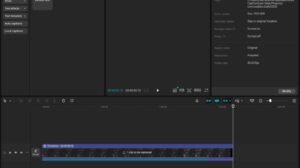
- The “One-at-a-Time” Rule: Do not try to generate captions, apply a filter, and move a clip at the same time. Let CapCut finish one task before starting the next.
- The SSD Advantage: If your PC has an old HDD (Hard Drive), CapCut will always be slow. Moving my project files to a Cheap External SSD improved my export speeds by 20%.
👉 Best for: Beginners, YouTube Shorts, TikTok videos
🎬 Filmora Performance: Real-World Testing on Low-End PCs
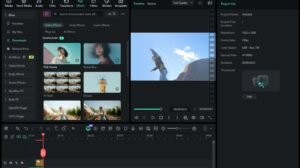
1. The “Startup” and Interface Lag
- Load Time: On my 4GB RAM (HDD) system, it took 45–60 seconds just to reach the editing timeline.
- UI Snappiness: I noticed a slight “input lag” when dragging clips onto the timeline. If you move too fast, the interface can freeze for 2–3 seconds while it “catches up.”
- Bilal’s Fix: Go to File > Preferences > Performance and ensure “Enable Hardware Acceleration” is checked before you even start your first project.
- Raw Playback: Without rendering, a 1080p clip with a “Split Screen” or “3D Title” effect was extremely laggy (5-8 FPS).
- The “Render Preview” Solution: Once I clicked the Render button, Filmora created temporary preview files. After this, playback was silky smooth (30 FPS).
- The Downside: This process takes time. For a 1-minute clip with effects, I had to wait about 2 minutes for the preview to render.
3. RAM & GPU Usage Comparison
| Activity | CapCut (4GB RAM) | Filmora (4GB RAM) |
|---|---|---|
| Idling | ~500MB | ~850MB |
| Editing (2 Layers) | ~2.8GB | ~3.4GB |
| Exporting | 90% CPU | 99% CPU |
4. Advanced Features vs. System Heat
- Testing AI Portrait: When I tried to remove a background using AI on my i3 laptop, the laptop fan became very loud, and the CPU temperature spiked.
- Bilal’s Advice: If you have less than 8GB RAM, do not use more than two AI effects at the same time, or your PC might thermal throttle (slow down to protect itself from heat).
5. Export Speed: The “Hardware Encoder” Test
- 1080p Export (5 mins video): It took 11 minutes on my 4GB system.
- The Secret: If I turned off “GPU Accelerated Video Encoding” in the export settings, the time jumped to 19 minutes.
[Insert Screenshot 2: The Filmora Export window showing the “Enable Hardware Acceleration” checkbox]
🏆 Bilal’s Final Verdict on Filmora for Low-End PCs
- Is it usable? Yes, but only if you have an SSD and use the “Render Preview” button constantly.
- Who is it for? Beginners who want more “Pro” titles and effects than CapCut offers, but have the patience to wait for renders.
- The “Safe” Zone: I recommend Filmora for users with at least 8GB RAM. If you have 4GB or less, stick to CapCut or Shotcut for a faster experience.
👉 Best for: YouTube videos, semi-professional editing
📊 Detailed Comparison Table
| Feature | CapCut | Filmora |
|---|---|---|
| Minimum RAM | 4GB | 4GB (8GB ideal) |
| OS Support | Windows / Mac | Windows / Mac |
| Best For | Beginners | Intermediate / YouTubers |
| Ease of Use | ⭐⭐⭐⭐⭐ | ⭐⭐⭐⭐⭐ |
| Performance (4GB RAM) | Smooth | Moderate |
| Performance (2GB RAM) | Limited | Not usable |
| Effects | Basic | Advanced |
| Export Speed | Fast | Medium |
| Limitations | Fewer pro features | Heavy on low-end PCs |
⚙️ Optimization Tips (CapCut vs Filmora)
To get better performance on low-end PCs:
✔ Lower Preview Resolution
- CapCut: Set preview to low
- Filmora: Use ½ or ¼ preview quality
✔ Use Short Clips
- Keep projects under 10–15 minutes
✔ Avoid Heavy Effects
- Filmora especially slows down with layered effects
✔ Close Background Apps
- Free RAM before editing
✔ Export in Segments (Filmora)
- Prevent crashes on long videos
🧠 What Ranking Guides Emphasize
- Optimization matters more than software choice
- Lightweight tools perform better on weak PCs
- Expect limitations on low RAM systems
👉 Even powerful software like Filmora will lag if not optimized.
💡 Which One Should You Choose?
👉 Choose CapCut if:
- You have 4GB RAM or less
- You’re a beginner
- You make short videos (Reels, Shorts)
👉 Choose Filmora if:
- You have 4GB RAM (optimized) or more
- You want advanced effects
- You create YouTube content
🏁 Final Verdict
For low-end PCs:
- Best overall: CapCut (fast, simple, smooth)
- Best for advanced editing: Filmora (but needs optimization)
👉 If your PC is weak, CapCut wins
👉 If you want features and can manage lag, Filmora is better
❓ FAQs
Q1: Is CapCut better than Filmora for low-end PCs?
Yes, CapCut is lighter and runs smoother on 4GB RAM systems.
Q2: Can Filmora run on 2GB RAM?
Not recommended — it may lag or crash.
Q3: Which is easier to use?
Both are beginner-friendly, but CapCut is simpler.
Q4: Which is better for YouTube videos?
Filmora offers more professional features.
- Best Video Editors for 2GB RAM PC
- Best Video Editing Software for 4GB RAM
- How to Edit Videos Without Lag
