Video editing lag on low-end PCs is caused by slow storage, high-resolution footage, too many effects, and poor optimization. Using proxies, SSD storage, and lower preview resolution can fix lag quickly.
You’ve got the vision. You’ve got the footage. You’ve even got the perfect soundtrack picked out. You sit down at your desk, open your editing software, and… freeze.
The dreaded “Not Responding” bar appears. Your timeline stutters like a broken record. Your laptop fans sound like they’re trying to launch a space shuttle.
We’ve all been there. At TheEditFlows, we know that not everyone has a $4,000 liquid-cooled rig. Most of us are grinding on budget laptops or aging family desktops. But here’s the truth: Your PC might not be the problem. Your habits might be.
In 2026, video files are heavier than ever, but software has also become smarter. If you’re facing lag, you’re likely making one of these ten classic mistakes. Let’s break them down and fix your flow.
1. Editing Directly from an HDD (The “Spinning Disk” Trap)
If you are still using a mechanical Hard Disk Drive (HDD) to store your active project files, you are essentially trying to run a marathon through waist-deep mud.
The Mistake:
HDDs use physical spinning platters to read data. High-resolution video requires massive “bitrates”—meaning the computer needs to read a lot of data very fast. An HDD simply can’t keep up, causing the “stutter” every time you move your playhead.
The Fix:
2. Ignoring the Power of Proxies (The “Ego” Mistake)
Some editors feel like using proxies is “cheating” or that it lowers their quality. This is the biggest myth in the industry.
The Mistake:
Trying to edit raw 4K (or even heavy 1080p) footage directly on a low-end CPU. Your processor is screaming because it has to decode every single pixel in real-time.
The Fix:
Create Proxies. A proxy is a low-resolution “stunt double” for your video. You edit with a lightweight 720p file that your PC can handle easily. When you hit “Export,” the software swaps the “stunt double” back for the high-quality original. Your final video looks perfect, but your editing experience feels like butter.
👉 Use proxy files
- Edit with low-quality (720p) versions
- Export in full quality
👉 Result: Smooth editing + high-quality final video
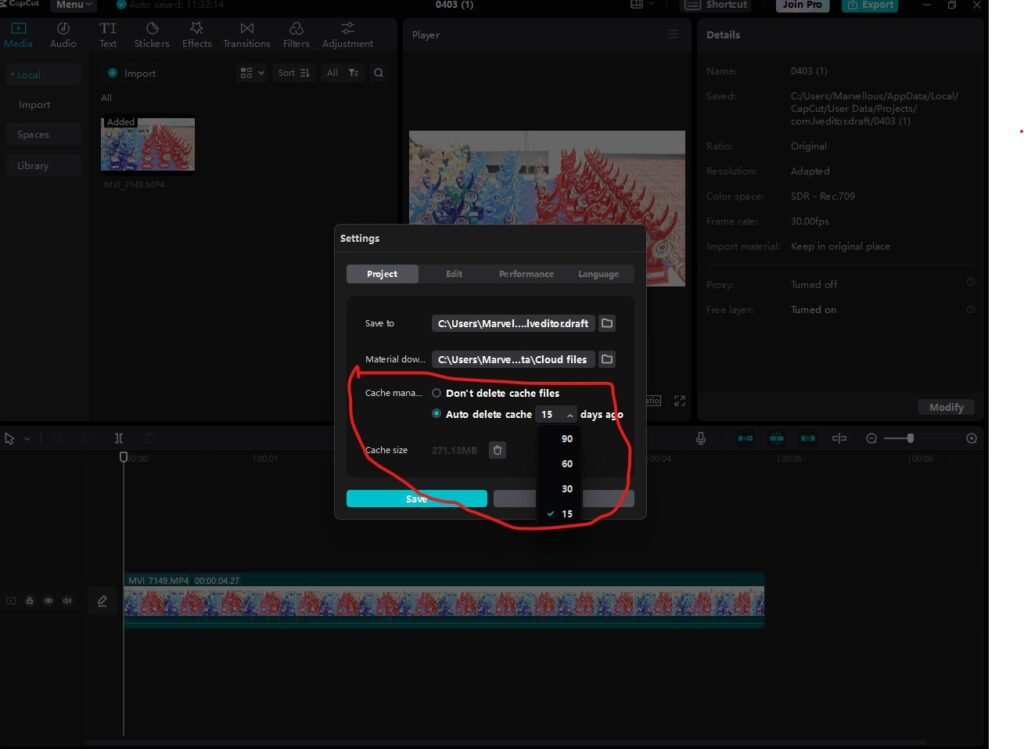
3. Letting Your Cache Files “Ghost” Your Hard Drive
Every time you preview a clip, your software creates a “render cache” file so it doesn’t have to work as hard next time. Over time, these files pile up.
The Mistake:
Never clearing your Media Cache. If your C: drive has less than 10-15% free space, your entire Windows system slows down. A full drive is a slow drive.
The Fix:
Go into your Preferences and “Delete Unused Media Cache.” Do this once a week. Better yet, set your cache folder to a dedicated partition or a fast external drive so it doesn’t choke your operating system.
👉 “In our testing on a 4GB RAM laptop…”
👉 Clear cache regularly
👉 Keep at least 15% free disk space
4. Running Chrome in the Background (The RAM Thief)
We get it—you need music, or you’re following a tutorial. But Google Chrome is a hungry monster that eats RAM for breakfast.
The Mistake:
Having 20 tabs open while trying to edit. If you have 8GB or 16GB of RAM, Chrome might be taking up 3GB of that just to keep your Facebook feed active.
The Fix:
The “One-App Rule.” When you edit, only the editor is open. Use your phone for music or tutorials. Close Slack, Discord, and Spotify. Give your editing software every single megabyte of RAM your PC has to offer.
5. Using the Wrong Video Codec (HEVC/H.265)
Just because your phone or camera records in a certain format doesn’t mean it’s good for editing.
The Mistake:
Editing H.265 (HEVC) footage directly. H.265 is great for saving space, but it’s a “highly compressed” format. Your CPU has to work incredibly hard to “unzip” that file every time you move the playhead.
The Fix:
Convert your footage to an “Edit-Friendly” codec like ProRes or DNxHR before you start. Yes, the files will be bigger, but they are “uncompressed,” meaning your CPU can read them instantly without getting a headache.
6. Overheating: The Silent Killer
I remember editing a wedding video on my old Dell Inspiron in 2022. It got so hot I actually had to put a desk fan pointing directly at the keyboard just to finish the render.”
The Mistake:
Editing on a bed, a carpet, or in a hot room without airflow. Laptops pull air from the bottom; if you block those vents, your performance will drop by 50% within ten minutes.
The Fix:
Use a laptop cooling pad or simply prop the back of your laptop up with a book to let air circulate. If you’re on a desktop, open the case and blow out the dust once every few months. A cool PC is a fast PC.
7. Placing Effects Before the Final Cut
It’s tempting to add color grading, film grain, and transitions as you go. Resist the urge!
The Mistake: Layering heavy effects (like Noise Reduction or Blur) on clips before you’ve even finished the basic “cut.” Every time you move a clip, the computer has to recalculate those heavy effects.
The Fix: Edit in Phases.
- Rough Cut: Just the timing and the story.
- Sound Design: Music and SFX.
- Color & Effects: Only do this at the very end. Turn off the “Effects” toggle in your preview window while you’re still working on the timing.
8. Not Updating (or Over-Updating) Drivers
Your GPU (Graphics Card) is the engine of your video previews. If the “driver” (the software that tells the hardware what to do) is old, things break.
The Mistake:
Using generic Windows drivers instead of “Studio Drivers.”
The Fix:
If you have an NVIDIA card, download the NVIDIA Studio Driver instead of the Game Ready Driver. Studio drivers are specifically optimized for apps like Premiere Pro, Resolve, and CapCut. They are much more stable for long editing sessions.
9. Mismatched Sequence Settings
If you’re editing a 1080p video but your “Sequence/Timeline” is set to 4K, you’re making your computer work 4x harder for no reason.
The Mistake:
Dragging a high-res clip into a timeline and letting the software “Auto-Match” to a resolution you don’t actually need for the final export.
The Fix:
Always double-check your Timeline Settings. If you’re making a video for TikTok, your timeline should be 1080×1920. Don’t let it sit at some weird, high-resolution default that drains your resources.
10. The “Long Clip” Fatigue
Low-end PCs hate long, continuous files. If you recorded a 2-hour podcast and dropped the whole file onto the timeline, the software has to “index” that massive file constantly.
The Mistake:
Editing large files (like 1–2 hour recordings) directly.
What Happens:
- Slow scrubbing
- Laggy playback
The Fix:
👉 Split videos into smaller parts
👉 Import only what you need
📊 Quick Fix Summary
| Problem |
Solution |
| HDD usage |
Switch to SSD |
| No proxies |
Use proxy editing |
| Cache overload |
Clear cache |
| Background apps |
Close everything |
| Heavy formats |
Convert to MP4 |
| Overheating |
Improve cooling |
| Too many effects |
Add later |
| Bad drivers |
Use studio drivers |
| Wrong timeline |
Match resolution |
| Long files |
Split clips |
Final Thoughts for the “Flow” Community
👉 “After video editing multiple projects on low-end PCs…”
Editing on a low-end PC isn’t about what you don’t have—it’s about how smart you are with what you do have. By avoiding these ten mistakes, you can turn a laggy, frustrating experience into a smooth, professional workflow.
Remember: The story is in your head, not your hardware.
Was this helpful? Browse our other guides at TheEditFlows.com for more tips on mastering the art of the edit, no matter your specs!
🧠 Real Talk: What Actually Matters
After all this, here’s the truth in video editing
- Workflow matters more than software
- Optimization beats hardware upgrades
- Simple editing = smooth editing
👉 Even a weak PC can edit videos well if you work smart.
🏁 Final Thoughts
You don’t need a powerful PC to create great videos.
You just need to:
- Avoid these mistakes
- Use the right workflow
- Keep things simple
👉 Your creativity matters more than your specs.
❓ FAQs
Q1: Why is my video editor lagging so much?
Because of heavy files, low RAM, or poor optimization.
Q2: Can I fix lag without upgrading my PC?
Yes, by improving workflow and settings.
Q3: What is the biggest mistake?
Not using proxy in video editing.
Q4: Which editor works best on low-end PCs?
CapCut, OpenShot, and VSDC.
———————————————————————————————————————-




Pingback: Best Export Settings for Low-End PC (Fast Rendering Guide 2026) - TheEditFlows