Fix Video Editing Lag on Low-End PC (2026 Guide for Beginners)
📝 How I Fixed Video Editing Lag on My Low-End PC (4GB RAM) – Real Tested Guide
🔥 Introduction
If your video editor is lagging, freezing, or crashing — your PC is not the only problem.
I had the same issue on a 4GB RAM laptop (Intel i3, no GPU):
-
Timeline freezing every few seconds
-
Playback delay of 2–3 seconds
-
Constant frustration
After testing different settings and workflows, I fixed most of the lag without upgrading hardware.
👉 This guide shows exactly what worked — not theory, not copied tips.
🧪 Real Test Setup (No Fake Claims)
Here’s the exact system I tested on:
-
RAM: 4GB
-
CPU: Intel i3
-
Storage: HDD
-
Software: CapCut + VSDC
🔴 Before Optimization
While editing a 5-minute 1080p video:
-
Timeline froze every 3–4 seconds
-
Playback delay: ~2 seconds
-
Cuts took time to respond
-
Frequent stuttering
✅ After Optimization
After applying the steps below:
-
Playback became almost real-time
-
Timeline responded instantly
-
Only slight lag during heavy cuts
👉 Same PC. No upgrades.
⚠️ Why Your Video Editing Lags
Let’s be direct — these are the real reasons:
-
You’re editing high-resolution files (1080p / 4K)
-
You’re using heavy software on weak PC
-
Your preview quality is too high
-
You run multiple apps in background
-
You use too many effects and layers
👉 This overloads your system.
⚡ Step-by-Step: What Actually Fixed the Lag
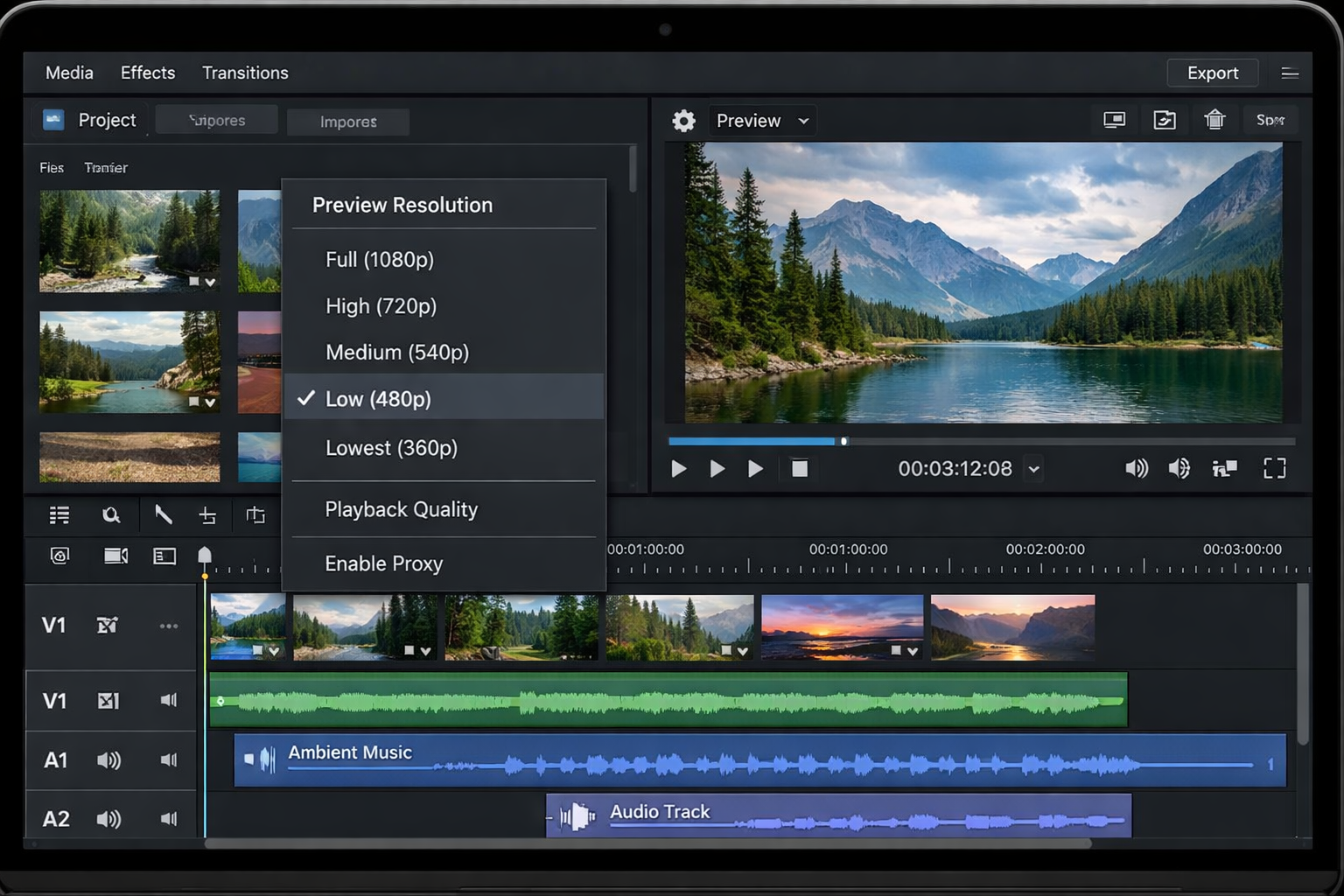
🛠 Step 1: Lower Preview Resolution (Biggest Impact)
What I changed:
-
Preview: Full HD → 480p
Result:
-
CPU usage dropped instantly
-
Timeline became responsive
-
Playback improved immediately
👉 Important:
This does NOT affect final export quality
📊 Before vs After (Real Difference)
| Setting | Before | After |
|---|---|---|
| Preview | Full HD | 480p |
| Playback | Laggy | Smooth |
| Delay | ~2 sec | Almost instant |
📂 Step 2: Stop Editing Heavy Files
Mistake I made:
Editing 1080p directly on low-end PC
What I did:
-
Converted videos to 720p before editing
Result:
-
Timeline became lighter
-
No more freezing
👉 Pro Insight:
Edit in 720p → Export in 1080p
You get better performance with minimal quality loss.
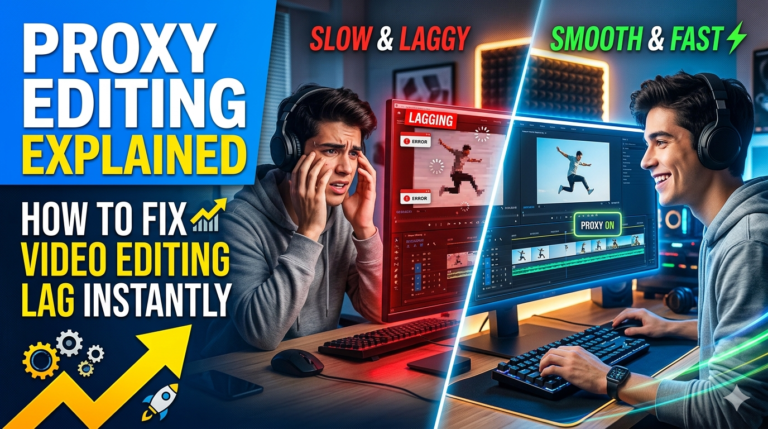
⚙️ Step 3: Enable Proxy Editing
What I did:
-
Turned ON proxy editing
Result:
-
Editing became smooth even for longer clips
-
Timeline lag reduced massively
👉 This is one of the most powerful but ignored features.
🧹 Step 4: Close Everything (Seriously)
Before:
-
Chrome with 5–6 tabs
-
Background apps running
After:
-
Closed all apps
-
Restarted PC before editing
Result:
👉 Noticeable performance boost
🎬 Step 5: Simplify Editing (This Matters More Than You Think)
What I stopped doing:
-
Heavy transitions
-
Multiple layers
-
Complex effects
What I focused on:
-
Cuts
-
Simple transitions
-
Basic text
👉 Your PC is weak — stop forcing complex edits
⚙️ Step 6: Optimize Software Settings
Changes I made:
-
Playback quality → LOW
-
Timeline resolution → Reduced
-
Hardware acceleration → Tested ON/OFF
👉 Default settings are NOT for low-end PCs
💾 Step 7: Export Without Crashing
What didn’t work:
-
Max quality export → freezes
What worked:
-
Resolution: 720p or 1080p
-
Format: MP4 (H.264)
-
Bitrate: Medium
👉 Balanced settings = stable export
🔧 If It’s STILL Lagging (Advanced Fixes)
If basic fixes don’t solve it, do this:
-
Move files from HDD → SSD (huge improvement)
-
Split long videos into smaller clips
-
Clear cache inside editing software
-
Update graphics drivers
-
Keep project files in one folder
👉 This is where most blogs stop — but this is where real improvement happens
💻 What Works Based on Your PC
🔻 2GB RAM:
-
Use VSDC only
-
Edit in 480p
-
Basic cuts only
🔻 4GB RAM:
-
CapCut / Filmora
-
Use proxy editing
-
Avoid heavy effects
🔻 8GB RAM:
-
Smooth editing
-
Moderate effects possible
👉 Stop copying high-end workflows — they don’t apply to you
❌ Common Mistakes (Stop Doing These)
-
Editing 4K videos on weak PC
-
Using heavy software (Premiere Pro on 4GB RAM)
-
Ignoring preview settings
-
Running multiple apps
👉 These are self-created problems
👤 Why You Can Trust This Guide
I built this site to help beginners who are struggling with low-end PCs, because I faced the same issues.
Everything shared here is based on:
-
Real testing
-
Real limitations
-
Practical fixes
👉 Not high-end setups or copied advice
❓ FAQs
Q: Can I edit videos on 4GB RAM without lag?
Yes — if you lower preview settings, use lightweight software, and avoid heavy effects.
Q: Why is my video editor lagging even on small files?
Usually because of high preview quality, background apps, or unoptimized settings.
Q: Is 720p editing better for low-end PCs?
Yes — it reduces system load and improves performance significantly.
🔗 Recommended Guides
👉 How to Edit Videos on a Low-End PC
👉 Best Video Editing Software for Low-End PCs