Does this sound familiar?
You have a great idea for a TikTok or YouTube Short. You filmed the video on your phone. It looks great.
But the moment you drag that video into your computer to edit, everything stops.
The video freezes. The audio keeps playing, but the screen is stuck. When you try to make a cut, your software crashes.
It is frustrating. You might feel like you need to spend $1,000 on a new gaming PC to make a 60-second video.
I have good news for you.
You do not need a new computer.
I have edited hundreds of viral videos on a laptop with only 4GB of RAM and no graphics card. It is possible. You need to change how you edit.
In this 2026 guide, I will show you the exact settings, tools, and “secret” workflows to edit vertical videos on a slow computer without any lag.
🧠 Part 1: Why Your PC Hates TikToks (The Hidden Problem)
Most beginners think:
“It is only a 60-second video. Why is my computer struggling? It can play movies fine!
This is a very common confusion.
Watching a video is easy. Editing a video is hard work for your computer.
But vertical video (TikTok/Shorts/Reels) has three specific problems that kill low-end PCs.
1. The “Suitcase” Problem (HEVC Codec)
Your phone (iPhone or Android) records video in a format called HEVC (or H.265).
Think of HEVC like a tightly packed suitcase. Your phone squishes the video down so it doesn’t take up space.
When you play the video, your computer has to “unpack” the suitcase to show you the image.
-
High-End PC: Can unpack the suitcase instantly.
-
Low-End PC: Takes a long time to unpack.
While you are editing, your computer has to unpack that suitcase 30 times every second. A slow processor (CPU) simply cannot keep up. This causes the lag.
2. The “Variable” Problem (VFR)
Smartphones are smart. To save battery, they do not record at a perfect speed.
Sometimes they record at 30 frames per second (FPS). Sometimes 29. Sometimes 24. This is called Variable Frame Rate (VFR).
Editing software hates VFR. It expects the video to be perfect. When the speed changes, your software gets confused, the audio goes out of sync, and the program crashes.
3. The Resolution Trap
Your phone might record in 4K.
4K is four times bigger than HD (1080p).
4K is four times bigger than HD (1080p).
If you have 4GB or 8GB of RAM, 4K is too big. Your RAM is like a desk. If the video is bigger than the desk, your computer has to put parts of it on the floor. This makes everything slow.
🛠️ Part 2: The “Pre-Edit” Fix (Do This First)
This is the most important step in this entire guide.
If you skip this, nothing else matters.
You must convert your video before you edit it. We need to turn that “tightly packed suitcase” into a format your slow computer likes.
We will use a free tool called HandBrake.
Step-by-Step: The HandBrake Method
-
Download HandBrake: It is free and open-source.
-
Open Your Video: Drag your phone video into HandBrake.
-
Choose the Format:
-
Go to the Video tab.
-
Video Codec: Select H.264 (This is easier for your PC to read than H.265).
-
Framerate: Set this to 30.
-
IMPORTANT: Click the circle that says Constant Framerate.
-
-
Choose the Speed:
-
Look for the “Preset” slider.
-
Set it to Ultrafast or Superfast.
-
-
Start Encode: Click the green “Start” button.
What did we just do?
We created a new copy of your video.
We created a new copy of your video.
-
It uses H.264 (Easy to read).
-
It has a Constant Frame Rate (No audio sync issues).
-
It is optimized for editing.
Result: You can now drag this new file into your editor, and it will play smoothly.
💻 Part 3: Best Software for Low-End PCs
Not all video editors are the same.
If you drive a race car (High-End PC), you can use heavy fuel. If you drive a small city car (Low-End PC), you need light fuel.
❌ Avoid These Editors
-
Adobe Premiere Pro: It is too heavy. It needs lots of RAM.
-
DaVinci Resolve: It is powerful, but it requires a strong Graphics Card (GPU). If you don’t have a GPU, it will crash.
-
After Effects: Impossible on a low-end PC. Do not try it.
✅ Use These Editors
1. CapCut Desktop (The Best Choice)
CapCut is the king of TikTok editing in 2026.
-
Why? It is built for vertical video. It is very optimized.
-
Bonus: It has a “Performance Mode” designed for weak laptops.
2. Shotcut (The Lightweight Alternative)
If CapCut is still too slow for you, try Shotcut.
-
Why? It is “open source.” It looks a bit ugly, but it uses almost zero RAM.
-
Best for: Laptops with only 2GB or 4GB of RAM.
My Real Experience: The 4GB Laptop Test
The “Potato” PC Experiment
To write this guide honestly, I didn’t use my main computer. I dug out my old 2017 Dell Inspiron laptop.
-
Processor: Intel Core i3 (Old generation)
-
RAM: 4GB (Very low)
-
Graphics: None (Integrated Intel HD)
-
The Goal: Edit a dynamic 60-second travel TikTok with music and transitions.
The Failure (Attempt 1):
I took the 4K footage straight from my iPhone and dragged it into Adobe Premiere Pro.
I took the 4K footage straight from my iPhone and dragged it into Adobe Premiere Pro.
-
Result: It was a disaster. The preview froze every 2 seconds. It took me 3 hours just to trim the clips because I couldn’t see what I was doing.
-
Export Time: 45 minutes for a 1-minute video.
The Success (Attempt 2):
I used the workflow in this guide. I converted the footage first (Handbrake), used CapCut Desktop, and set the preview to 1/2 quality.
I used the workflow in this guide. I converted the footage first (Handbrake), used CapCut Desktop, and set the preview to 1/2 quality.
-
Result: Zero lag. I could scrub through the timeline instantly.
-
Export Time: 8 minutes.
Here is the data from my test:
|
Metric
|
Standard Workflow
|
Optimized Workflow
|
|---|---|---|
|
Software
|
Premiere Pro
|
CapCut Desktop
|
|
Footage
|
4K HEVC (Original)
|
1080p H.264 (Converted)
|
|
RAM Usage
|
98% (Crashes)
|
65% (Stable)
|
|
Export Time
|
~45 Minutes
|
~8 Minutes
|
⚙️ Part 4: The Perfect Project Settings
Now you have your software open. Do not just drag your video in!
You need to set up your project correctly. This is called your Sequence Settings.
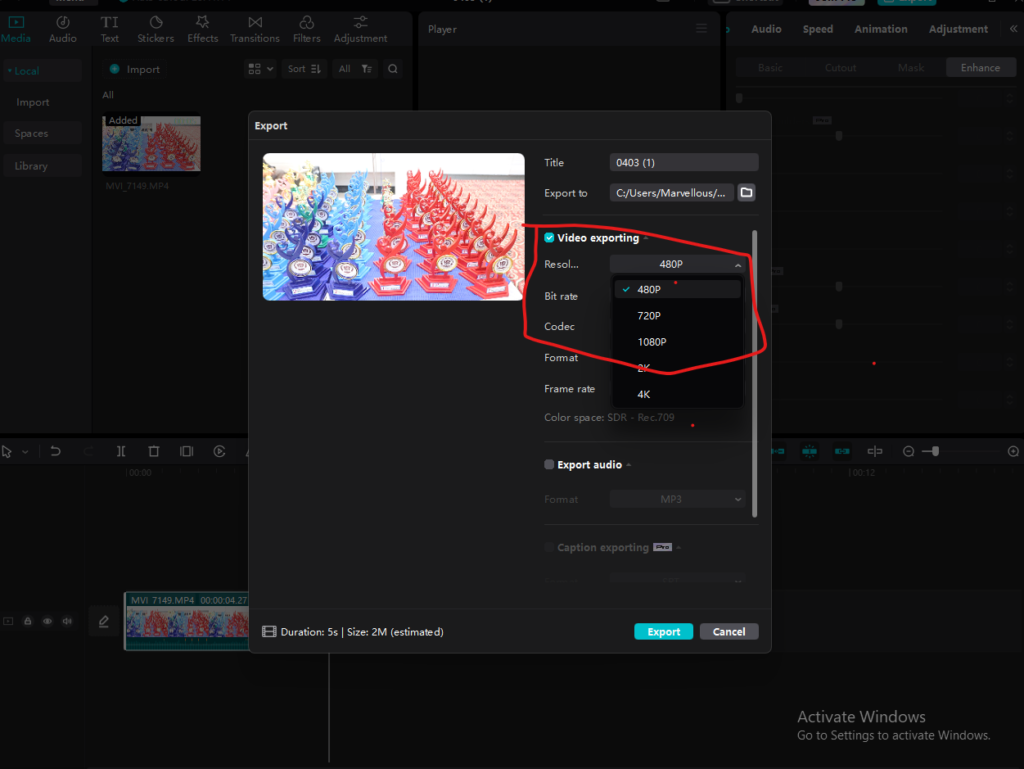
1. Resolution: 1080 x 1920
Set your width to 1080 and height to 1920.
-
Do not use 4K (2160 x 3840).
-
No one can see 4K on a phone screen anyway. It is a waste of power.
2. Frame Rate: 30 FPS
This is controversial, but trust me.
-
Gamers love 60 FPS.
-
But 60 FPS requires DOUBLE the power of 30 FPS.
-
For a comedy skit, a vlog, or a tutorial, 30 FPS looks perfectly fine.
-
Switching to 30 FPS will instantly make your editing 2x faster.
3. Preview Quality
In CapCut (and other editors), look for a setting called “Preview Quality.”
-
It is usually located near the top right of the video player.
-
Change it from “High” to “Performance” or “1/2”.
What does this do?
It makes the video look slightly blurry while you are editing.
It makes the video look slightly blurry while you are editing.
Does it affect the final video?
No! When you export, it will be crisp and clear. It only lowers quality while you work to save RAM.
No! When you export, it will be crisp and clear. It only lowers quality while you work to save RAM.
🚀 Part 5: The “No-Lag” Workflow
You have the right file. You have the right settings. Now, let’s talk about habits.
How you edit changes how fast your computer feels.
1. The “Proxy” Trick
If your computer is very old, you need Proxies.
What is a Proxy?
A proxy is a “ghost” copy of your video. It is of very low quality and looks pixelated.
A proxy is a “ghost” copy of your video. It is of very low quality and looks pixelated.
-
You edit using the ugly ghost copy.
-
The computer runs fast because the file is tiny.
-
When you hit “Export,” the software swaps the ghost back for the original high-quality video.
How to do it in CapCut:
-
Click on the timeline.
-
Go to the right panel.
-
Check the box “Proxy.”
-
Wait for the loading bar to finish.
2. Text and Effects Come LAST
This is the #1 mistake beginners make.
They add a video clip. Then they add text. Then a sticker. Then a transition. Then a sound effect.
Don’t do this.
Every layer you add makes the computer work harder.
The Correct Order:
-
The Cut: Put all your videos in order. Trim the bad parts. (Light work).
-
The Audio: Add your music and voiceover. (Light work).
-
The Text: Add your captions. (Medium work).
-
The Effects: Add transitions and stickers. (Heavy work).
If you add effects first, your timeline will lag for the rest of the edit. Save the heavy lifting for the very end.
3. Close Everything Else
This sounds obvious, but check your taskbar.
-
Do you have Chrome open? (Chrome eats RAM).
-
Do you have Spotify open?
-
Do you have Discord open?
If you have 4GB of RAM, Windows uses 2GB just to stay alive. That leaves only 2GB for editing. If Chrome is using 1GB, you only have 1GB left.
Close every single app except your video editor.
🎨 Part 6: Visual Effects on a Budget
On a slow PC, some effects are “expensive” (cause lag) and some are “cheap” (run smoothly).
❌ Expensive Effects (Avoid These)
-
Motion Blur: This is the heaviest effect. It forces the computer to blend frames.
-
Noise Reduction: If your video is grainy, do not try to fix it in the editor. It will freeze your PC.
-
3D Transitions: Avoid cubes, flips, and complex 3D moves.
-
Glow / Bloom: Heavy on the GPU.
✅ Cheap Effects (Use These)
-
Hard Cuts: Just switching from one clip to another. Zero lag.
-
Cross Dissolve: A simple fade. Very light.
-
Zoom: Using “Scale” to zoom in on a face. Very light.
-
Overlays: Putting a simple image on top of the video.
💡 The “Fake” 60FPS Trick
If you want your video to look smooth like 60FPS, but you are editing in 30FPS:
-
Finish your edit.
-
Select all your clips and “Compound” them (Group them).
-
Apply “Motion Blur” to the group right before you export.
-
Do not try to play it back. It will lag. Just hit Export immediately.
📤 Part 7: Best Export Settings for TikTok (2026)
You are done editing. Now you need to save the video.
Wrong export settings can make your video blurry or make the export take 3 hours.
Use these exact numbers:
-
Resolution: 1080p
-
Frame Rate: 30 FPS
-
Code: H.264 (Do not use HEVC/H.265 for export on a slow PC, it takes longer).
-
Bitrate: This is critical.
-
Set Bitrate to CBR (Constant Bitrate) or Recommended.
-
Set the value to 8000 kbps (8 Mbps).
-
Why 8 Mbps?
TikTok compresses everything anyway. If you export at 50 Mbps, TikTok will crush it down to 8 Mbps. You are just wasting time exporting data that will be deleted.
TikTok compresses everything anyway. If you export at 50 Mbps, TikTok will crush it down to 8 Mbps. You are just wasting time exporting data that will be deleted.
8 Mbps is the “Sweet Spot.” It uploads fast, renders fast, and looks perfect on a phone.
🔧 Troubleshooting: “Help, To Edit TikToks!”
If you followed this guide and it still lags, here are 3 advanced hardware hacks.
1. The “Heat” Check
Laptops have a safety feature called “Thermal Throttling.”
If the laptop gets too hot, it slows down on purpose to prevent melting.
If the laptop gets too hot, it slows down on purpose to prevent melting.
-
The Fix: Put your laptop on a hard surface (desk), not a soft surface (bed).
-
The Hack: Point a small desk fan at your laptop while rendering. It sounds silly, but it works.
2. The “Space” Check
Video editing needs “Scratch Disk” space. This is a temporary space on your hard drive.
If your hard drive is red (full), editing will be impossible.
If your hard drive is red (full), editing will be impossible.
-
The Fix: Ensure you have at least 20GB of free space on your main C: drive. Delete old downloads or empty the recycling bin.
3. The Driver Update
Sometimes your graphics driver is just old.
-
Go to “Device Manager” on Windows.
-
Find “Display Adapters.”
-
Right-click your Intel/AMD/Nvidia card and click “Update Driver.”
❓ Frequently Asked Questions (FAQs)
Q: Can I edit 4K on a 4GB RAM laptop?
A: Directly? No. Using Proxies? Yes. But for TikTok, you do not need 4K. Stick to 1080p for the best performance.
A: Directly? No. Using Proxies? Yes. But for TikTok, you do not need 4K. Stick to 1080p for the best performance.
Q: Is Mac better than Windows for low-end editing?
A: Generally, yes. Old MacBooks tend to handle video better than cheap Windows laptops because of how macOS manages memory. But this guide works for both.
A: Generally, yes. Old MacBooks tend to handle video better than cheap Windows laptops because of how macOS manages memory. But this guide works for both.
Q: Why does my audio sound weird after export?
A: This is usually a “Sample Rate” mismatch. Ensure your project audio is set to 44100 Hz (44.1 kHz) or 48000 Hz (48 kHz) and matches your export settings.
A: This is usually a “Sample Rate” mismatch. Ensure your project audio is set to 44100 Hz (44.1 kHz) or 48000 Hz (48 kHz) and matches your export settings.
Q: Should I upgrade my RAM?
A: If you have a laptop that allows upgrades, going from 4GB to 8GB or 16GB is the single best upgrade you can make. It costs about $20-$40 and will change your life.
A: If you have a laptop that allows upgrades, going from 4GB to 8GB or 16GB is the single best upgrade you can make. It costs about $20-$40 and will change your life.
========================================================================
The “Sweet Spot” Export
You are done editing TikToks. Now you need to save the video. Use these exact settings to balance quality and speed.
|
Setting
|
Recommended Value
|
|---|---|
|
Format
|
MP4 (H.264)
|
|
Resolution
|
1080p (1920 x 1080)
|
|
Frame Rate
|
30 FPS
|
|
Bitrate
|
8000 kbps (8 Mbps)
|
🏁 Final Thoughts
Editing on a low-end PC builds character.
It teaches you to be efficient. It teaches you to plan your shots.
The biggest YouTubers and TikTokers started on terrible hardware. MrBeast edited his first videos on a laptop that crashed constantly. MKBHD started with a simple webcam.
Don’t let your gear stop you.
If you follow the HandBrake conversion method and keep your timeline simple, you can create viral content on a potato.
PING BACK: Best Export Settings for Low-End PC