
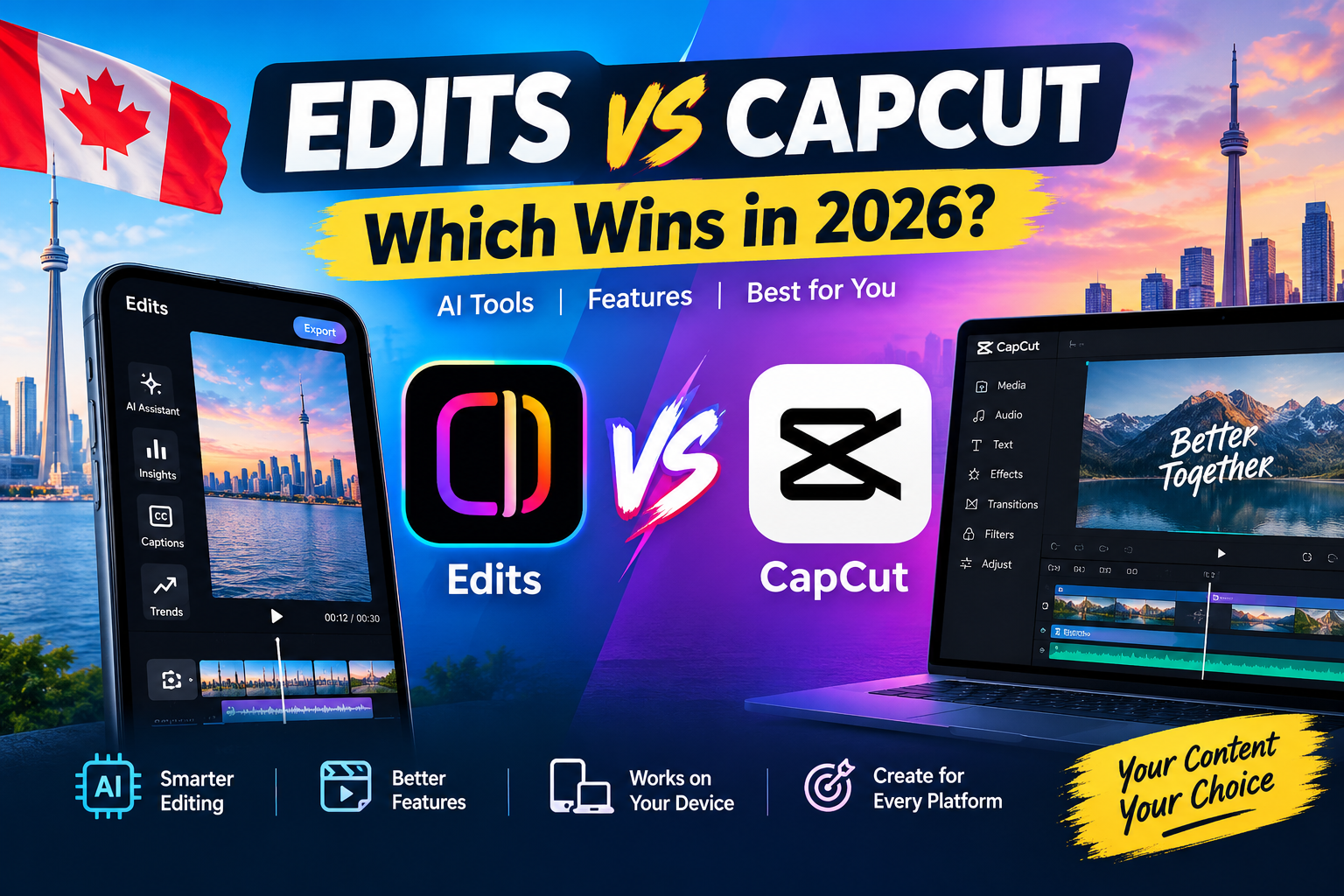
Introduction: Video Editing Is Changing Fast
Creating a good video used to take hours of work. You had to cut unwanted footage, add subtitles, adjust audio, choose transitions, and export the final result. For beginners, even a short video could become a frustrating project.
Things are changing in 2026.
AI-powered editing tools are helping creators automate repetitive tasks, improve captions, and produce short videos more efficiently. This matters to people creating content for TikTok, Instagram Reels, YouTube Shorts, and small-business social media pages.
Canada is an interesting market to watch. A Media Technology Monitor study reported in October 2026 found that newcomers to Canada were particularly active users of AI tools and short-form video platforms. This is a useful indication of changing media habits, although it does not prove that one editing app is more popular than another.
Instagram has also introduced an AI assistant for its Edits video-editing app. The assistant is designed to help creators understand audience engagement and identify patterns in their content performance.
This raises a practical question: **Should creators continue using CapCut, or is Instagram Edits becoming a better option?**
The answer depends on what you create, which platform you use, and how much control you want over your editing workflow.
Why AI Video Editing Matters to Canadian Creators
Video content is useful for more than entertainment. Small businesses use it to promote products, freelancers use it to demonstrate their skills, and creators use it to build an audience.
However, making videos consistently can be difficult.
Imagine running a small business in Toronto. You want to publish three promotional videos every week, but you also need to manage customers, prepare orders, and answer messages.
Spending several hours editing every video may not be realistic.
AI editing features can help reduce some repetitive work. Automatic captions, background removal, and assisted editing can make the production process more manageable.
These features do not guarantee more views or sales. They simply give creators more options for producing content efficiently.
What Is Instagram Edits?
Instagram Edits is a video-editing application developed by Meta for creators who want to make and manage video content.
Its workflow is particularly relevant to people who publish Reels and use Instagram to reach an audience.
In September 2026, TechCrunch reported that Instagram was rolling out an AI assistant for Edits. According to the report, the assistant uses account performance information, such as views, likes, shares, and audience retention, alongside content trends to provide personalized feedback.
This is different from a conventional editing tool that focuses mainly on cutting clips and applying effects.
Instead of only asking, “How can I edit this video?”, creators can also ask, “What patterns can I learn from my previous videos?”
That could be useful when deciding which content to improve or what to test next.
However, audience analytics cannot tell you with certainty which video will become popular. Results still depend on the subject, storytelling, audience interest, and many other factors.
What Is CapCut?
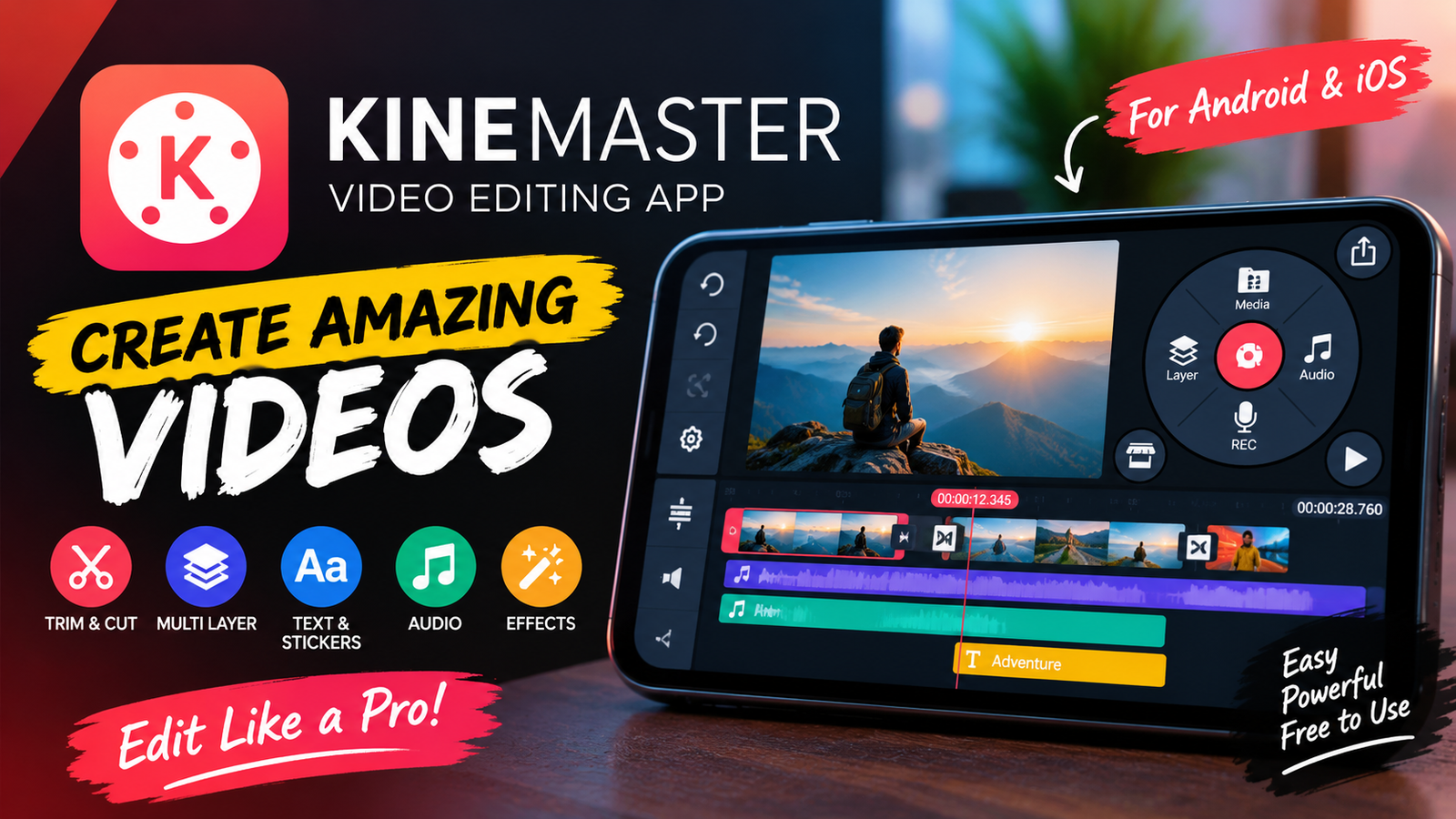
CapCut is a video editor widely used for short-form content. It offers editing tools for creating videos with captions, effects, transitions, music, and other visual elements.
For beginners, its appeal is straightforward: you can produce a polished-looking video without learning a complicated professional editing system first.
Depending on the version, device, region, and subscription, CapCut also offers AI-assisted features.
These can include tools for captions, background removal, tracking, and other editing tasks.
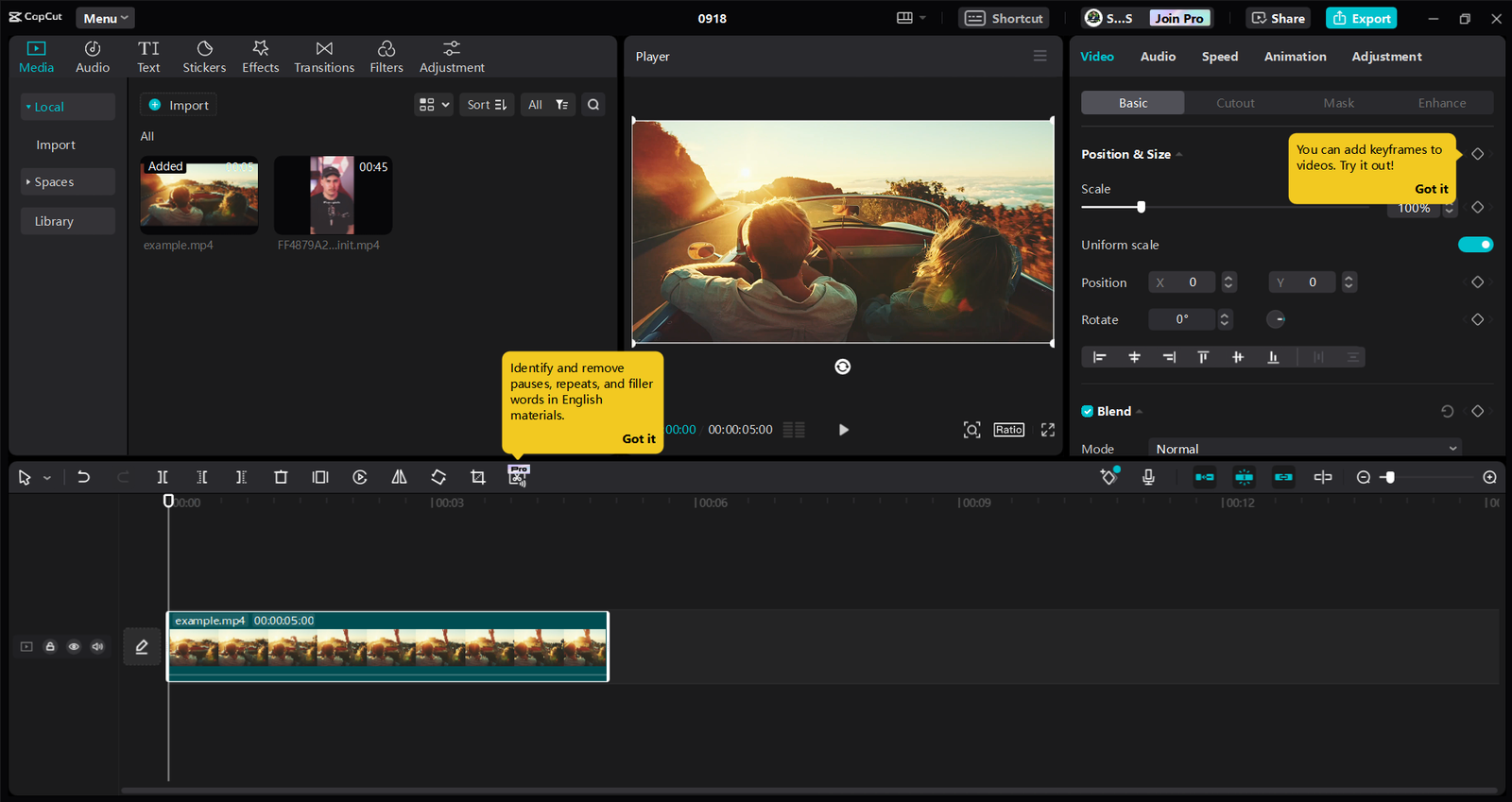
One advantage of CapCut is its familiar timeline-based workflow. You can arrange clips, adjust their timing, add text, and control how the final video looks.
For creators who want more detailed control over individual clips, that flexibility can be important.
Keep in mind that feature availability and pricing can change. Check the official app before choosing a paid plan.
Instagram Edits vs CapCut: Main Differences
| Instagram Edits | CapCut | |
|---|---|---|
| Main appeal | Instagram-focused creation and insights | Flexible short-form video editing |
| AI assistance | Personalized creator insights through its reported AI assistant | Various AI-assisted editing features |
| Editing workflow | Suited to Instagram-oriented publishing | Timeline-based editing for multiple short-video workflows |
| Best use case | Creators focused on Instagram Reels | Creators making TikToks, Shorts, Reels, and other clips |
| Audience analytics | Instagram account performance insights through the assistant | Depends on the app features and connected platform |
| Cost | Check current official pricing and availability | Free and paid options may be available |
| Ideal user | Instagram-focused creators | Beginners and creators who want flexible editing tools |
Neither application is automatically the best choice for everyone. The right option depends on your workflow and the features available to your account.
Which App Is Better for Beginners?
If you are completely new to editing, start with the app that makes your first project easiest.
Choose Instagram Edits if your main goal is creating Instagram Reels and you want to explore its creator-focused tools.
Choose CapCut if you want a flexible editor for assembling clips, adding captions, applying effects, and producing videos for different platforms.
You do not need to learn both applications at once.
Instead, create the same short video in each app. Compare the time required, the quality of the captions, the ease of changing clips, and the final export.
That simple exercise will tell you more about your personal workflow than choosing an application based on online hype.
How to Create a Short Video Using AI Editing Tools
You can test either editor with a simple 30-second video.
Step 1: Choose one clear idea
Do not start with a complicated project.
For example, create a short tutorial explaining one way to make video editing faster on an older computer.
Your video should answer one question and provide a useful result.
Step 2: Record your footage
Use your phone or computer to record the explanation.
Record in a quiet place, keep the camera steady, and make sure your voice is easy to hear.
You do not need expensive equipment to begin.
Step 3: Remove unnecessary sections
Import the footage into your chosen editor.
Remove long pauses, repeated sentences, and sections that do not help explain the main idea.
AI can assist with certain editing tasks, but review every cut. Automatic tools may remove words or pauses that are important to the meaning.
Step 4: Add captions
Captions can make spoken content easier to follow, particularly when viewers watch without sound.
Generate automatic captions if the feature is available, then check spelling, punctuation, names, and technical terms.
Do not assume AI-generated subtitles are always correct.
Step 5: Improve the visual presentation
Use simple text, readable fonts, and a small number of transitions.
Avoid filling every second with animations. Effects should make the message clearer rather than distract viewers.
Step 6: Review the final video
Watch the entire video before publishing.
Check the sound, captions, framing, pacing, and whether the ending delivers the promised information.
Export using settings appropriate for your target platform and footage. A vertical 1080 × 1920 video is a common starting point for short-form content.
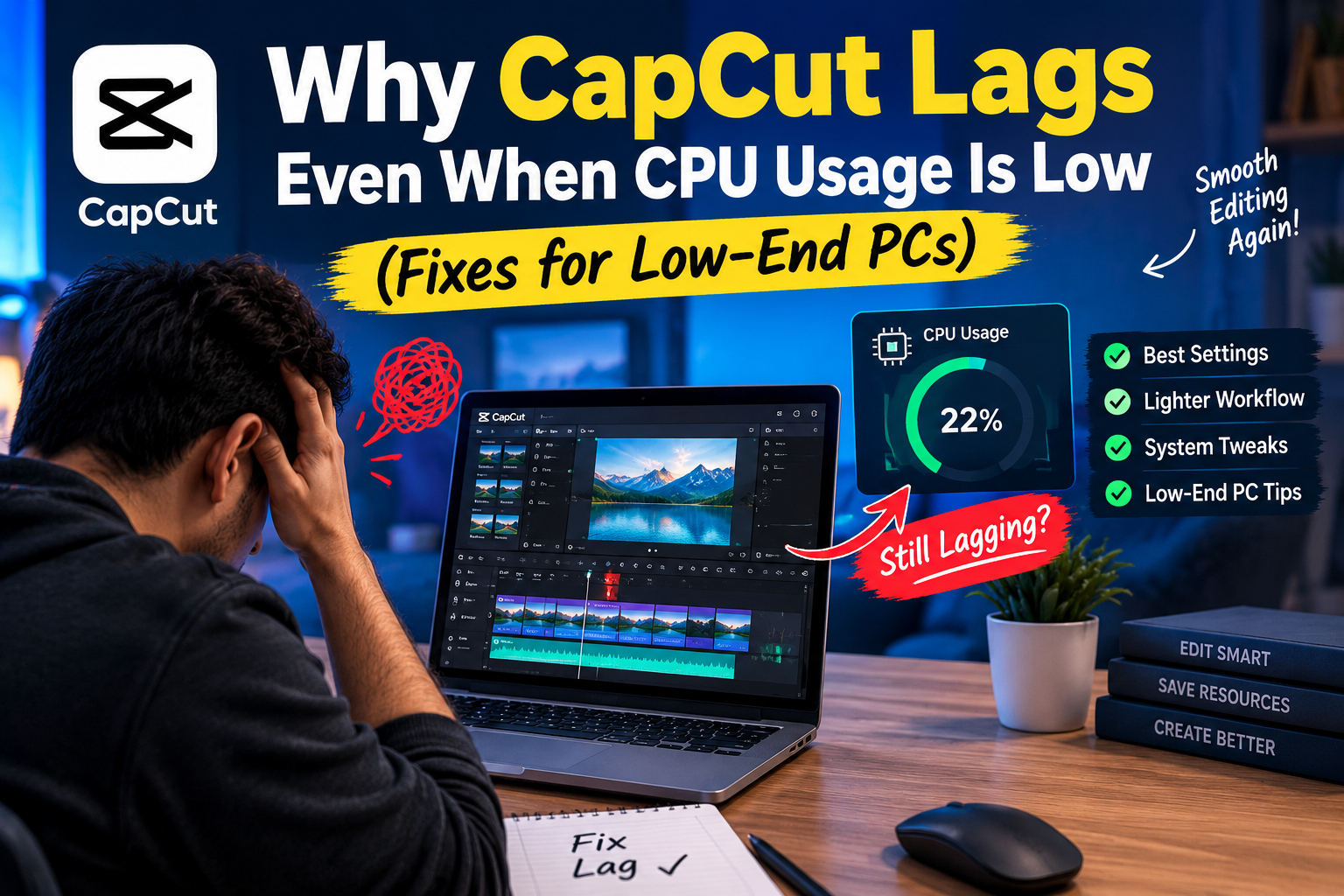
What About People Using Low-End PCs?
This is where many editing tutorials overlook an important problem.
An AI feature may save editing time but still require a powerful device, a stable internet connection, or a paid subscription. Some features process content in the cloud, while others depend more heavily on local hardware.
If you have an older computer, test the actual workload before building your entire workflow around a new tool.
Try these practical steps:
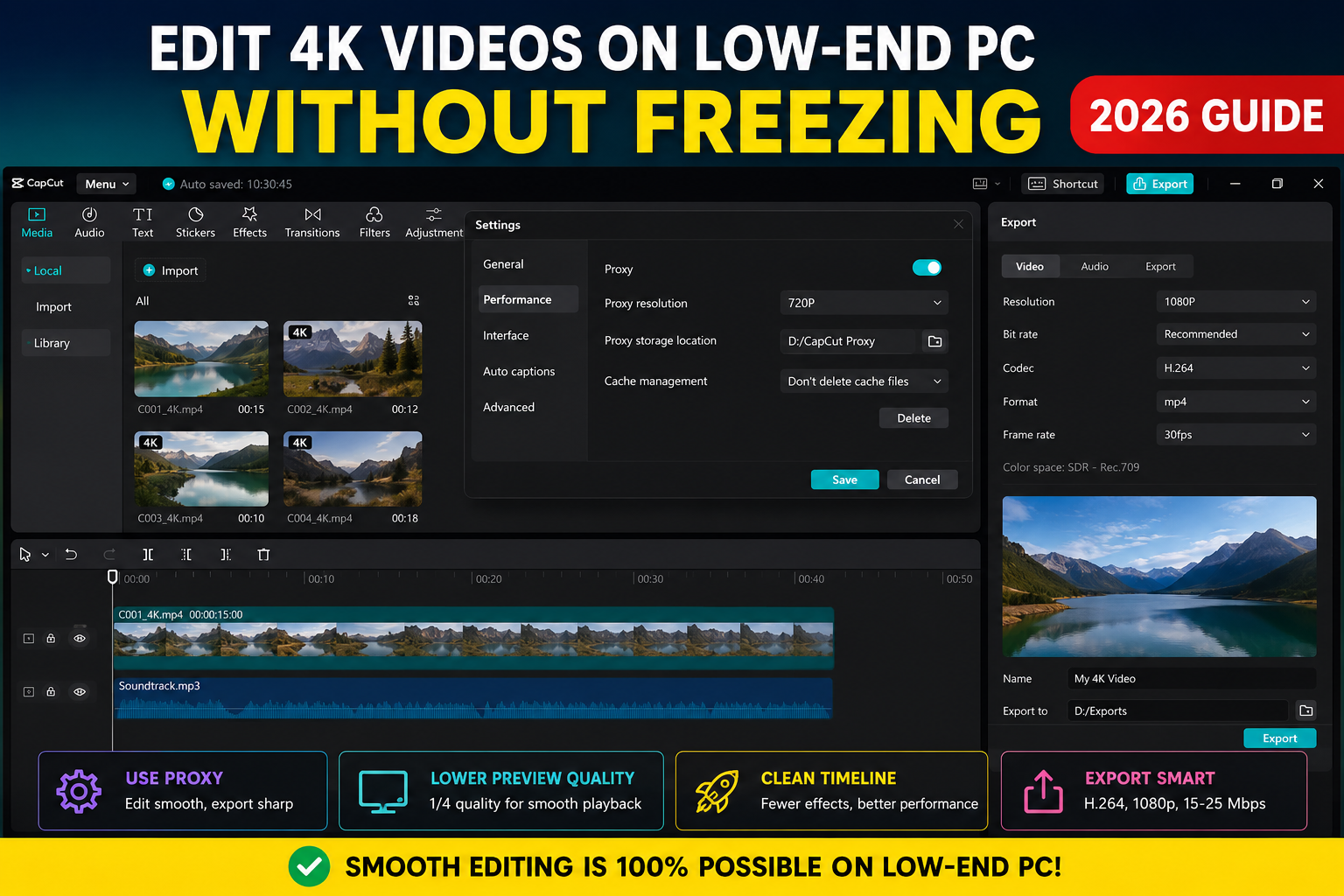
- Edit a short 1080p project before attempting 4K footage.
- Close unnecessary applications to free up memory.
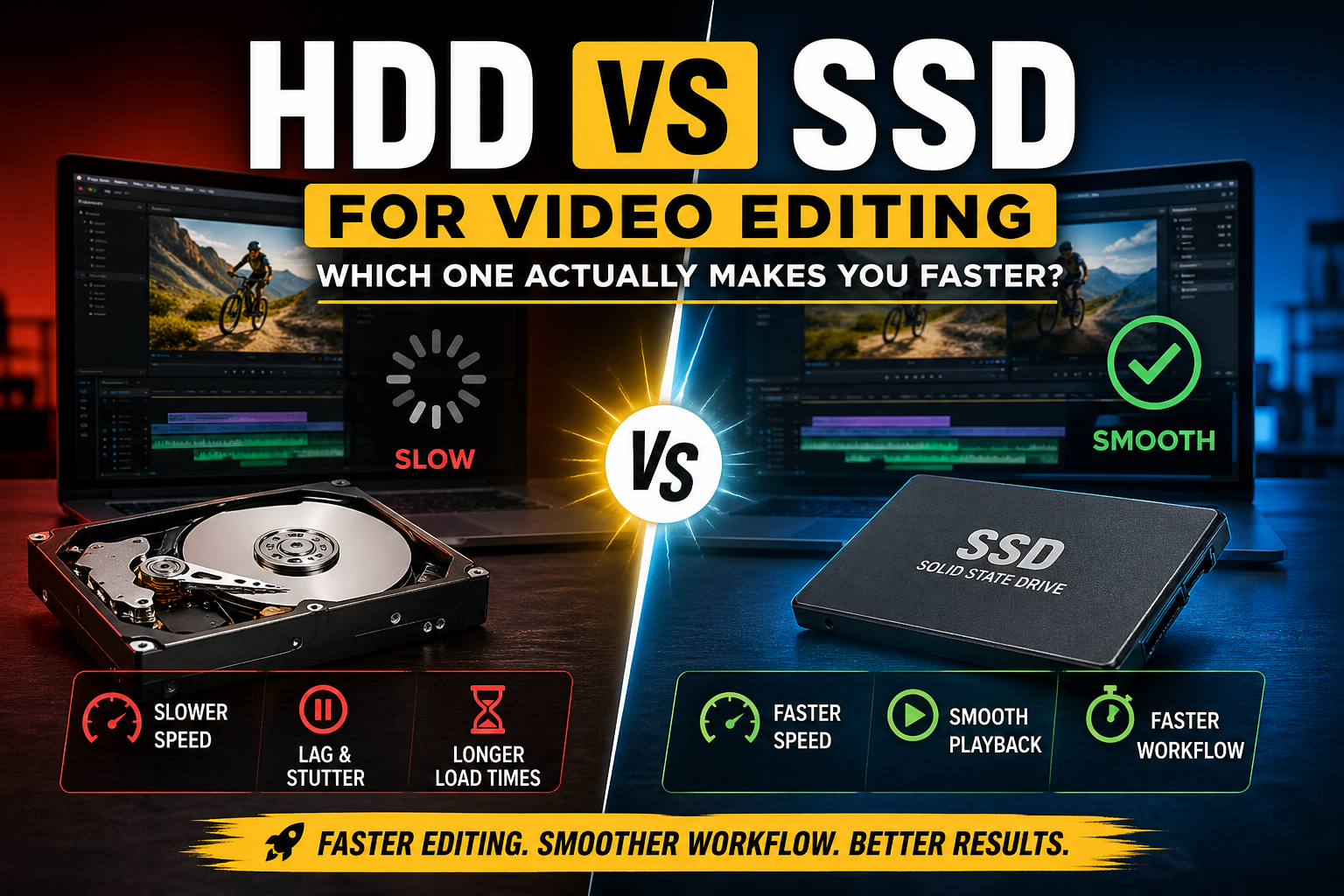
- Keep project files on an SSD when possible.
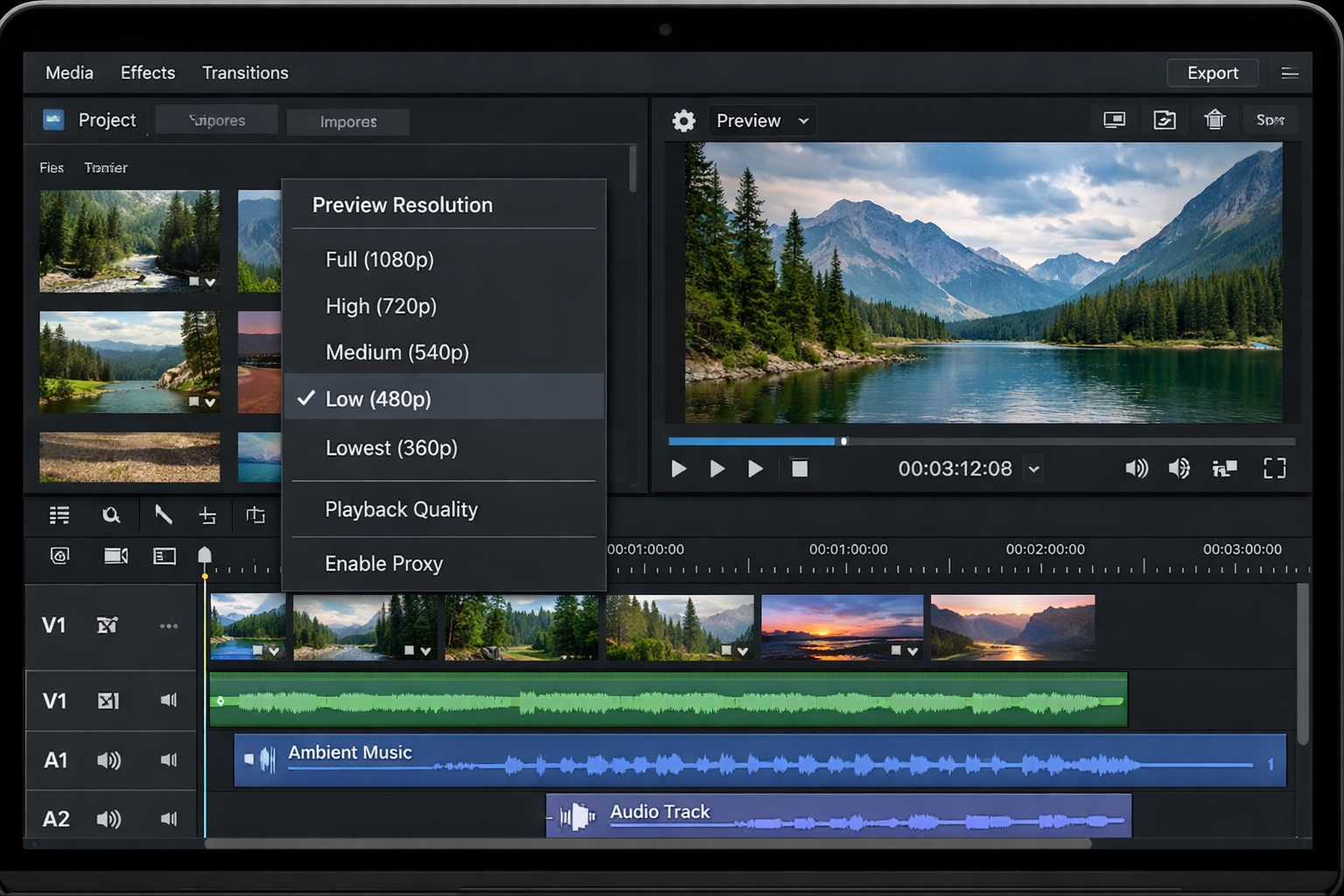
- Use lower-resolution preview settings if your editor supports them.
- Generate captions or other AI assets separately if processing them inside the main project causes slowdowns.
- Check export quality before deleting original footage.
An SSD can improve file loading and general responsiveness, but it will not magically fix insufficient RAM or an overloaded processor.
For detailed guidance, read our related article on [editing videos without lag using AI tools in 2026](https://theeditflows.com/edit-videos-without-lag-using-ai-tools-in-2026/), if that page is still published and accessible.
Does AI Automatically Make Videos More Popular?
No.
This is one of the biggest misunderstandings about AI video editing.
AI can help with captions, repetitive tasks, and certain editing decisions. It cannot guarantee that viewers will care about the subject.
Consider two videos about the same topic.
The first begins with a long introduction and takes 20 seconds to explain why the viewer should keep watching.
The second immediately explains the problem, demonstrates the solution, and uses captions to make the steps easy to follow.
The second video may hold attention more effectively because its structure is clearer, not simply because it was edited with AI.
A useful approach is to focus on three things:
1. **The opening:** Give viewers a clear reason to continue watching.
2. **The value:** Demonstrate something useful, entertaining, or interesting.
3. **The pacing:** Remove unnecessary material without making the video difficult to understand.
Then review the available audience-retention and engagement data. Use it to form ideas for your next experiment rather than treating one result as a universal rule.
Common Mistakes When Using AI Video Editors
Depending on automatic captions without checking them
Incorrect captions can change the meaning of a sentence or make a professional video look careless. Always review the output.
Adding too many effects
A video can look busy without communicating anything useful. Use transitions and animations only when they support the message.
Choosing software because it is trending
An application’s popularity does not mean it will work well on your computer or suit your needs.
Test the essential features before investing time or money.
Ignoring copyright and usage rights
Check the licence terms for music, stock footage, templates, and generated assets. Rules can differ depending on the asset and whether your project is commercial.
Expecting AI to replace creative judgment
AI can assist with production, but you remain responsible for accuracy, storytelling, and the final result.
Which Tool Should You Choose in 2026?
For an Instagram-focused creator, Edits is worth testing because of its emphasis on the Instagram publishing workflow and the reported AI assistant.
For a creator who wants flexible editing controls across different short-video formats, CapCut remains worth considering.
For someone using a low-end PC, the deciding factor should be real performance on that computer—not the number of AI features advertised.
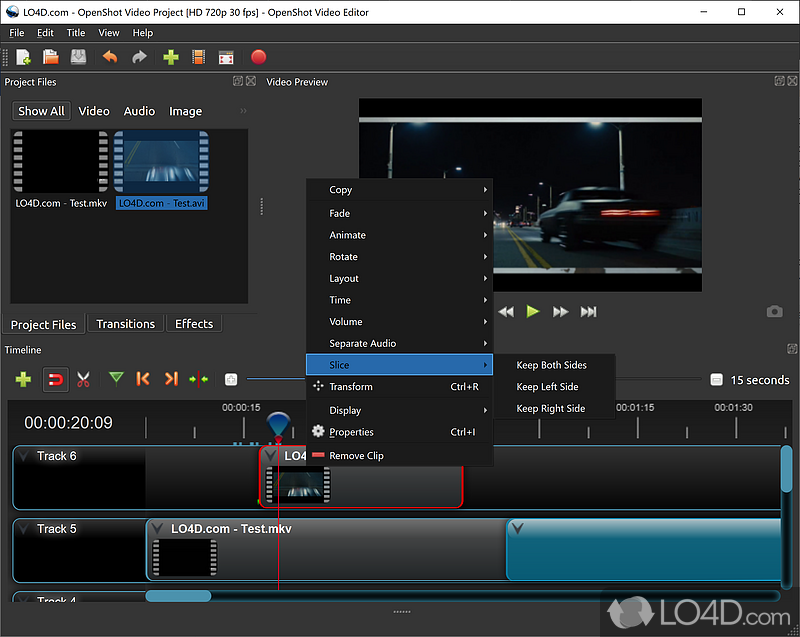
You can also use a more advanced desktop editor when you need detailed control over colour, audio, effects, or complex timelines.
The best editing tool is the one that helps you produce good videos consistently without wasting time or money.
Final Thoughts
AI is changing how creators approach video editing, but it has not removed the need for good ideas, clear storytelling, and careful editing.
Instagram Edits and CapCut serve overlapping needs, yet they offer different reasons to use them. One emphasizes the Instagram creator workflow and audience insights, while the other provides a flexible environment for assembling and editing short videos.
Rather than switching applications because of a new announcement, test the features that solve your actual problems.
Create one video, compare the results, and choose the workflow that fits your device and publishing goals.
For creators in Canada and elsewhere, that is a more reliable strategy than chasing every new AI feature.
Frequently Asked Questions
Is Instagram Edits better than CapCut in 2026?
It depends on your needs. Edits is worth considering for Instagram-focused creation and insights, while CapCut offers flexible short-form editing tools. Test both before deciding.
Is CapCut good for beginners?
CapCut can be a useful starting point because it provides accessible editing tools and AI-assisted features. Beginners should still learn basic cutting, audio control, captions, and export settings.
Can AI edit an entire video automatically?
Some tools automate parts of video creation and editing, but results vary. Human review remains important for accuracy, pacing, and quality.
Can I edit videos with AI on a low-end PC?
Yes, depending on the application and task. Simple 1080p projects may be manageable, but demanding effects, high-resolution footage, and certain AI processes can require more resources.
Should Canadian creators pay for AI video editing software?
Not necessarily. Start with a free option if it meets your needs. Pay only when a specific feature saves enough time or improves your workflow enough to justify the cost\\
Does AI editing improve YouTube Shorts and Instagram Reels views?
Not automatically. AI may help you produce content more efficiently, but views depend on multiple factors, including the topic, audience interest, video quality, and distribution.



Leave a Reply